How to edit a Zoom recording: cleanup, captions and short clips
Edit Zoom recordings by chatting with Selects. Keep a topic, request a 20-minute version, add captions to clips or use a reference video style.
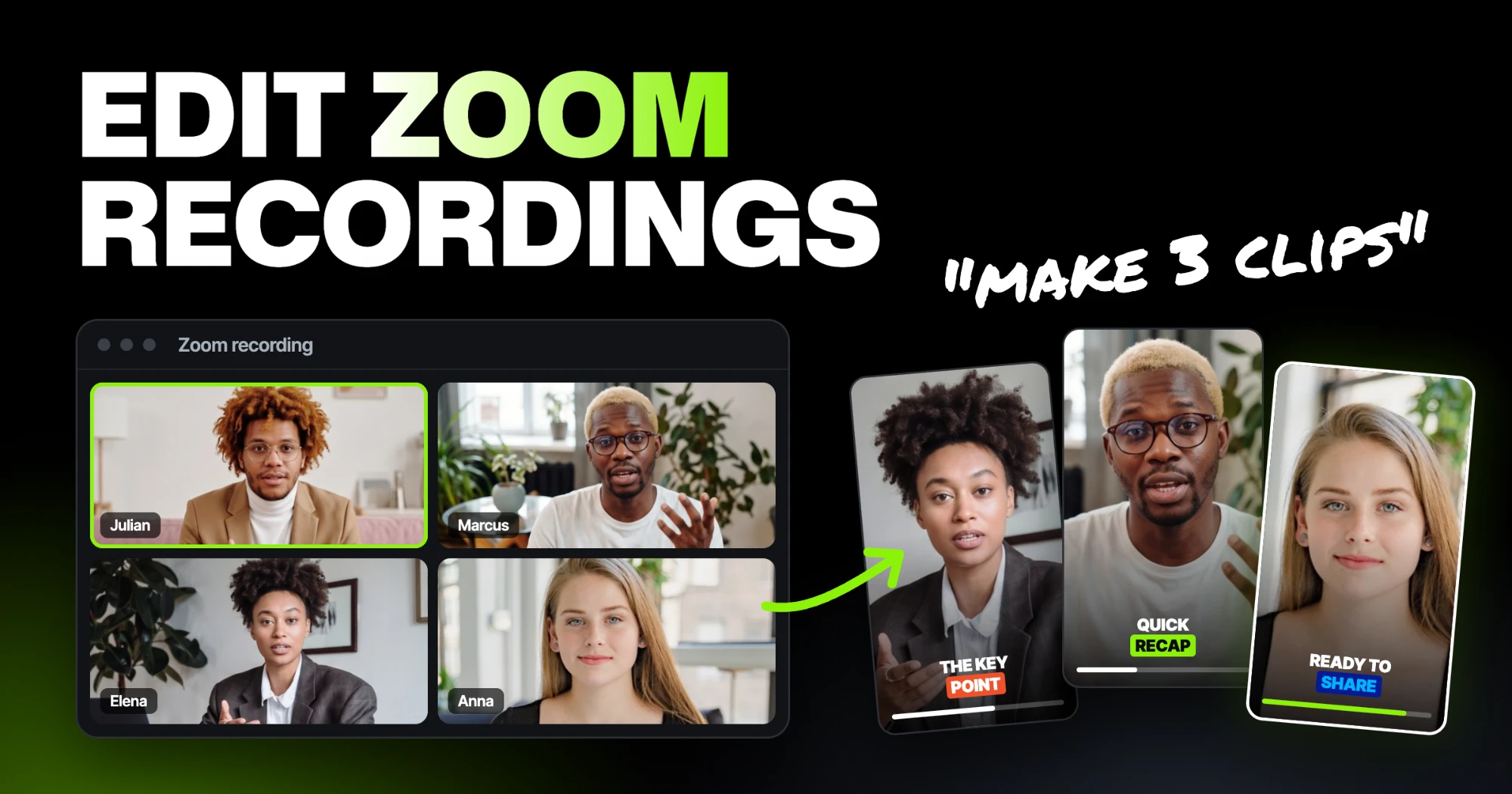
TLDR: You can edit a Zoom recording in Selects by chatting, without learning a complex editing workflow. Ask it to keep a topic, make a 20-minute version or create several captioned clips. You can also paste a YouTube, Instagram or TikTok link and ask for several clips in that style. Import and analyze the recording, describe the result you want, then review the draft. Use Selects chat, a paid ChatGPT or Claude plan connected inside Selects, or Claude/Codex through MCP.
You do not need to learn a complicated timeline before making your first edit. In Selects, start by saying what the finished Zoom recording should contain. The chat can make the cuts, add captions and prepare clips; you review the result and ask for changes. See how editing through chat works.
For example, you can ask:
- Keep one topic: “Keep only the parts where we explain the onboarding process.”
- Shorten the recording: “Make this a 20-minute video. Keep the demonstration and the most useful audience questions.”
- Make captioned clips: “Create three short clips from this recording and add captions to each one.”
- Use a style reference: “Use this video's style: [paste a YouTube, Instagram or TikTok link]. Make three clips from my recording with similar pacing, structure and captions.”
These are example requests you can adapt to your recording. The sections below show how to prepare the file, give a useful brief and check the draft before sharing it.
A meeting may contain a speaker, a shared screen and a gallery of small faces, all flattened into one picture. Chat can edit that material, but the available views still depend on what Zoom saved.
1. Find the video file you can edit
Zoom provides MP4 video and M4A audio for both computer and cloud recordings. For a computer recording, wait for conversion to finish and locate the saved MP4. For a cloud recording, open the recording's page and use Download if your account has permission. Ask the owner for the file if downloading is restricted. See Zoom's guides to recording formats and downloading cloud recordings.
Make a source folder containing the original video, any separate audio and useful presentation files. Edit a working copy or project rather than replacing your only source. That matters when someone later asks for the answer you removed.
Check the recording before importing it:
| What you have | What it means for the edit |
|---|---|
| A single speaker-view MP4 | You can edit the visible speaker, but cannot reveal someone who was never recorded |
| A gallery-view MP4 | The faces share one image; enlarging a small tile also enlarges its limited detail |
| A recording with a shared screen | Preserve the information on the screen when choosing a crop |
| Separate recording views or source files | You have more choices for switching or arranging the pictures |
| Separate participant audio | Useful for audio work, but it does not create separate participant video |
As Zoom's computer-recording guide explains, a computer recording saves the recorded view, not an isolated camera file for each participant. If you received additional files or views, check what each one contains.
2. Decide whether Zoom's cloud trim is enough
If you only need to remove waiting time, a break or an irrelevant section from a cloud recording, try Zoom's own trim first. Download an untouched copy before trimming. Zoom's cloud-trimming guide describes how trimming overwrites the cloud recording and associated audio/transcript files, with restoration available. Shared viewers receive the trimmed version for viewing or downloading. Trimming does not apply to separate participant audio files or the in-meeting chat.
A full editor becomes useful when you need to move an answer earlier, insert a slide, repair an awkward visual transition, add a designed caption treatment or turn the recording into multiple deliverables.
For a training session, a clean full-length edit may be the priority. For a customer interview, you might need both a complete discussion and a few excerpts. Decide which version you are making before trimming away its context.
3. Build a watchable full edit in Selects
Add the saved MP4 to Selects. You can edit on the timeline, in the transcript or through chat. It runs on an Apple Silicon Mac or a Windows 11 PC.
Analyze the recording first so Selects can work with its speech and visual content. Then tell chat what you want to keep, remove or turn into clips. It proposes a plan for you to approve and creates an editable draft. You can keep revising through chat instead of learning each timeline control.
Keep a topic or ask for a 20-minute edit
Name the material that matters: a product demonstration, a guest's explanation or the questions from the final discussion. “Keep only the onboarding explanation” gives the editor a clearer job than “make it better.”
For a longer workshop, ask for a 20-minute version and name the sections that must stay. Selects' editor page demonstrates a duration-based request. Treat the duration as your editing target: check the first draft's runtime, then ask it to shorten or restore specific sections. Keep questions and setup that an answer needs to make sense.
Choose the mixed meeting audio or the separate participant files for your dialogue track, rather than playing both over the same speech. If you use separate audio, align it with the video and check synchronization at several points; see the multicam sync guide. Listen for a quiet guest, abrupt level changes and overlapping words at each cut. These decisions matter more than removing every pause.
Start with material the audience clearly does not need: waiting for attendees, microphone checks, repeated instructions and a long screen-sharing setup. Keep pauses that serve the explanation. Removing every gap can make a thoughtful answer sound rushed.
Ask Claude, ChatGPT or Codex to make the first cut
You can describe the edit to an assistant and have Selects carry it out. MCP, or Model Context Protocol, connects an external AI assistant to Selects' editing tools. The Selects MCP guide lists Claude Desktop, Claude Code and Codex among its supported agents.
- On the Selects home screen, click your profile in the top right, then Connect MCP.
- Choose your agent. Selects' guide lists the Codex option as Codex in ChatGPT; this connects the Codex agent.
- Fully quit and reopen the agent so it loads the Selects connection. Keep Selects open on the same computer while you work.
- With the recording imported and analyzed, ask the connected assistant for an editable cleanup, captions or separate short clips. Review its draft in Selects.
For this editing workflow over MCP, your AI provider bills the conversation. The agent's editing actions do not use Selects credits; footage analysis does.
For a ChatGPT workflow inside Selects, click the model name at the bottom right of the chat input and choose Reuse your ChatGPT subscription. Sign in and approve the connection in the browser window that opens, then return to Selects. This requires a paid ChatGPT plan. Selects also supports connecting Claude Pro or Max there; see the subscription and MCP guide. Your connected plan covers the conversation; footage analysis still uses Selects credits.
Paste a brief like this into your connected assistant or Selects chat:
Use Selects to make a clean full-length edit of the Zoom workshop recording in this project.
Remove the waiting room, microphone checks and the final goodbye chatter.
Keep the questions needed to understand each answer.
Preserve screen demonstrations and the instructions that explain them.
Leave the result as an editable draft for review.
Watch the result against the original. When a speaker says “as I showed earlier,” that earlier step may be essential even if it looked like a tangent in the transcript.
4. Handle faces and shared screens differently
For the full workshop, landscape may keep both the presenter and the interface readable. A vertical excerpt often needs a different treatment. Ask what the viewer needs to inspect: a face, a cursor movement, a chart or a physical demonstration.
Selects' reframing documentation describes vertical framing and manual shot adjustment. For a 9:16 draft, set the frame to 1080 × 1920 and adjust each shot's position or scale in Adjust. Use scale, position or a mask to define the visible area; there is no dedicated crop control. Centering the speaker may still leave important screen content outside the frame.
If a narrow crop makes interface text unreadable, keep the demonstration larger: for example, a large screen panel above a smaller presenter panel. The Selects templates page explains how to start with reusable layouts. When only a flattened recording exists, you are working with the pixels in that file. A new layout cannot restore an unseen view or recover detail the original never captured.
5. Ask for captioned clips, with a reference style if you have one
Choose moments that answer one useful question. A short with a complete point is more useful than a fixed number of clips cut from every meeting. Before sharing an excerpt beyond its original audience, confirm that the participants and your organization allow it.
For example:
Find up to three useful answers from the workshop Q&A.
Make a separate draft for each answer, keeping the audience question
when the speaker's reply depends on it.
Add captions to every clip.
Preserve the matching screen-share demonstration and its final step.
Do not omit a condition that changes the advice.
Suggest vertical framing only where the screen content remains readable.
The Selects clipping workflow supports up to ten short drafts in a batch from analyzed material. Review each draft rather than treating the maximum as a quota.
Paste a reference video link to guide the style
If you already have a YouTube video, Instagram Reel or TikTok video whose style you like, give Selects the link with your recording. You do not have to turn every visual choice into a long prompt. The reference-style workflow takes the elements you name, such as pacing, structure, captions or motion graphics, and applies them to a new edit made from your footage.
For example:
Reference: [paste a YouTube, Instagram or TikTok link]
Use this style to make three clips from my Zoom recording.
Keep the pacing and caption treatment, with the shared screen readable.
Use my recording for the content and keep each answer complete.
If the reference layout does not suit a screen demonstration, ask chat to adapt it: “Keep this caption style, but make the screen panel larger.” Review the interpretation rather than expecting every reference detail to be duplicated.
6. Caption the final cut and check the exported file
Finish rearranging the conversation before doing detailed caption cleanup. In Selects' caption workflow, review generated captions in the Captions app and restyle them in the Adjust tab. Changing the cut later requires regeneration, which resets caption edits.
Use Check names and terms to fix recurring participant names and product terms across the project, then check numbers and negations while listening. Check that captions do not cover the screen control the presenter is explaining.
Export the intended version, then open the actual file. Check its beginning, ending, audio and every important transition. For a screen tutorial, read the smallest essential text at the likely viewing size. Keep the finished filename distinct from the source and from earlier review versions.
Common questions
Do I need to learn video editing to edit a Zoom recording?
You can start with chat in Selects. Import and analyze the recording, then say what to keep, how long the edit should be or how many captioned clips you need. Review the draft and ask for changes in the same conversation. You can use timeline controls when you want a manual adjustment.
Can I ask for a 20-minute version of a Zoom recording?
Yes. Give Selects a duration target and the material that must stay, such as the demonstration and audience questions. Check the draft's actual runtime and the completeness of each explanation, then refine it through chat.
Can I use a reference link to style clips from a Zoom recording?
Yes. Add a YouTube, Instagram or TikTok link and ask Selects to use its style for clips made from your recording. Name anything that should take priority, such as readable screen content or complete answers. Check pacing, captions, layout and framing before exporting.
Can I edit a Zoom recording after the meeting ends?
Yes. Use the processed recording file in a compatible editor, or Zoom's cloud trim for supported cloud recordings. Keep a source copy before making changes.
How do I remove the beginning and end of a Zoom recording?
For a cloud recording, download an untouched copy, then follow Zoom's cloud-trimming guide. Trimming overwrites the shared version, with restoration available. For a local MP4, import it into an editor, set the useful beginning and ending, and export a new file. Check that the first explanation and final sentence remain complete.
What can I use to edit Zoom videos on Mac?
Choose by the job:
- Remove sections from a cloud recording: use Zoom's built-in trim.
- Rearrange a local file, add captions or make vertical clips: use a full editor. Selects is an option on an Apple Silicon Mac; source analysis uses credits.
For a local file, check its codec before committing to a tool. If your existing editor covers the job, start there. For short clips, see Selects' clipping workflow.
Can I edit a Zoom recording with ChatGPT or Claude?
Yes, through a connected Selects workflow. Use Claude Desktop, Claude Code or Codex through the Selects MCP, or connect a paid ChatGPT or Claude Pro/Max plan to the chat inside Selects. Opening an ordinary ChatGPT or claude.ai browser chat alone does not connect it to your Selects project. Import and analyze the recording first, then ask for an editable cut and check the result before sharing it.
Can I separate every participant from one Zoom video?
Not as original independent camera recordings. A gallery MP4 contains a combined image. You may reframe visible tiles, with quality limits, but an absent participant view cannot be recovered from that file.
Start with one recording and decide whether you need a full edit, excerpts or both. Download Selects if that deliverable needs the editing workflow above.