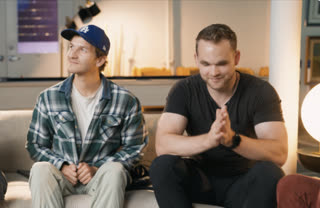
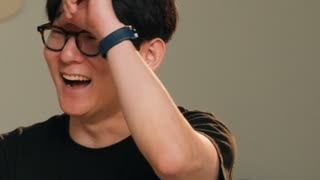
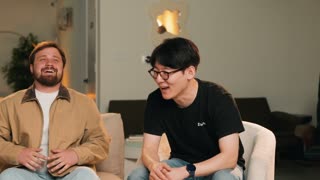
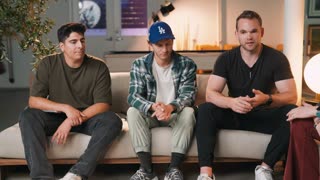




Every camera and mic, synced
Three cameras, a boom and two lavs? Selects lines them up by audio waveform or by timecode. One project holds 10 or more cameras, plus separate lav, boom and wireless audio.
Every angle synced.
Then just say the cut.
Three cameras. Four mics. Two hours of conversation.
Selects syncs every angle, cuts to the speaker when you ask, and hands the edit to your NLE.
Prompt: This is episode 14. Remember how I edited 12 and 13: same cut pacing, same lower thirds, 20 second intro
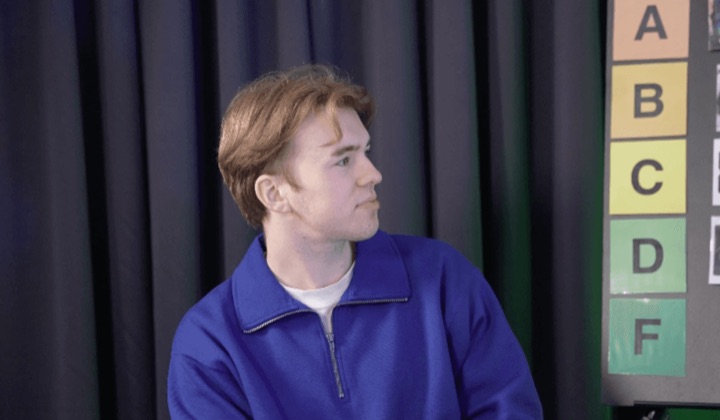
Prompt: Pull 8 shorts out of the full tier list episode, one per ranking, vertical, start each on the reaction
Every episode starts the same way: three cameras rolling, a lav on each guest, and an hour or two of real conversation.
Then the edit takes six hours. Sync the cameras, match each voice to its mic, scrub for the moments that matter, cut the dead air, pick the angle for every line. Next week, all of it again.
Most of those hours aren't taste. They're sorting. Selects does the sorting, and you make the calls on a real timeline.
Drop in the folder of raw media
Sync it, then ask for the edit
Export the video, or hand it off
Three cameras, a boom and two lavs? Selects lines them up by audio waveform or by timecode. One project holds 10 or more cameras, plus separate lav, boom and wireless audio.
Ask chat to switch cameras and it follows the speaker, avoids jump cuts and goes wide at natural moments. Set your own rules in plain words, like hold this angle for at least five seconds.
Analysis splits every recording into topics and subtopics. Rename them, drag one onto the timeline to place that segment, or carry them into Adobe Premiere and DaVinci Resolve as markers.
Cut filler words takes out hesitations, hedging and repeats on English footage, every one or with as few jump cuts as possible. Remove silence trims pauses to a preset or your own timing. Prefer a looser feel? Restore puts them back.
| Editing 3 cam · 2h raw video | Editing manually | Selects |
|---|---|---|
| Total time | 6h 30m | 0h 20m |
| Multicam sync | 1h | included |
| Chunk into topics | 1h | included |
| Color label | 30m | included |
| Delete unnecessary clips | 1h | included |
| Transcribe | Impossible | included |
| Cut long silences | 1h | included |
| Cut filler words | 1h | included |
| Switch camera by speaker | 1h | included |
Professionals are already seeing the payoff.
The client said they wanted it super fast.And the only reason I'm not worriedis because we are using Selects.
The Chef Gal (@dachefgyal)
DP, Producer & Editor based in NYC
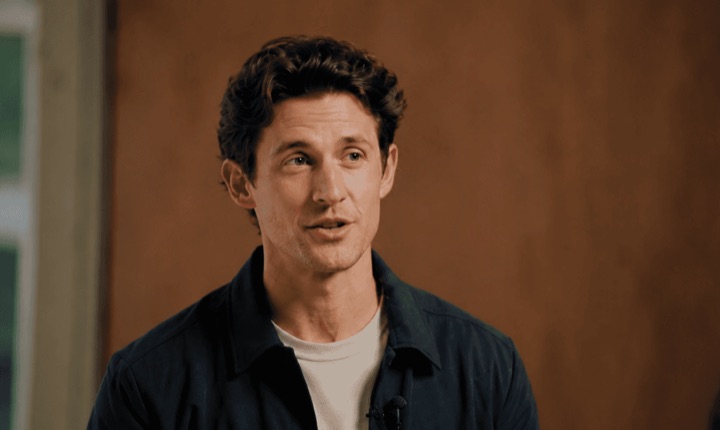
This will actually look at the video,and it'll catch those reaction shots,those subtleties that all others are gonna miss.
Brent Pierce
Podcast Studio & Video Production Company Owner
Honestly,this is one of the best editing toolsI've tried in a long time.
Serge Morgotch
Video Editing Educator & Creator
This is what AI should really be about,helping us filmmakersrather than taking our job.
Luca Epifani
Filmmaker & Video Creator
A brand-new AI editing softwarethat has literally changedmy 20-year workflow overnight, permanently.
DJ Kerr
Video Editor / Motion Graphics Artist
The client said they wanted it super fast.And the only reason I'm not worriedis because we are using Selects.
The Chef Gal (@dachefgyal)
DP, Producer & Editor based in NYC
This will actually look at the video,and it'll catch those reaction shots,those subtleties that all others are gonna miss.
Brent Pierce
Podcast Studio & Video Production Company Owner
Honestly,this is one of the best editing toolsI've tried in a long time.
Serge Morgotch
Video Editing Educator & Creator
This is what AI should really be about,helping us filmmakersrather than taking our job.
Luca Epifani
Filmmaker & Video Creator
A brand-new AI editing softwarethat has literally changedmy 20-year workflow overnight, permanently.
DJ Kerr
Video Editor / Motion Graphics Artist
It syncs your cameras and mics, transcribes the conversation by speaker, and builds a first cut you shape in chat.
Drop in the files from the recording. Selects lines up every angle, splits the episode into topics, and works out which mic belongs to which speaker. Then ask for the edit: tighten the pauses, drop the tangent in the middle, cut to whoever is talking.
Ten or more camera angles in one project, plus separate lav, boom and wireless audio.
Sync runs on the audio waveform by default, or on timecode if your cameras share it. A clap at the top helps because it's audible. A clip with no audio track can't be synced by sound, so you place that one by hand.
Yes. Ask chat to switch cameras and it cuts to the speaker, avoids jump cuts, and goes to the wide at natural moments.
Give it rules in plain words, like hold each angle for at least five seconds or go wide more often in the first ten minutes. You can also switch by hand with the number keys.
About 20 minutes for every hour of video. You can keep working while it runs, as long as Selects stays open.
Your edit points, tracks, speaker labels and a multicam sequence, all linked to your original media.
Each draft becomes a sequence, your Selects folders become bins, and topics can arrive as markers. Choose whether to nest the multicam before you export. Final Cut Pro (.fcpxml), DaVinci Resolve (.drp) and Avid Media Composer (.aaf) get the same cut.
Effects, color, text and volume changes stay behind, and transitions arrive as plain cuts. Do that finishing in your editor.
Yes to both. The draft is an ordinary timeline: change any cut by hand, or keep giving notes in chat.
Filler words are only cut when you ask, and you choose which kind: hesitations, hedging or repeats. It works on English recordings, and Restore filler words puts them back.
Explore our help center for all articles