




A first cut from one sentence
Ask for a 12-minute cut that keeps the story and drops the tangents. Selects watches all of the footage, builds the draft on a real timeline, and takes your notes from there.
Two hundred clips.
One rough cut to start from.
Drop in every clip from the trip, pieces to camera and B-roll alike.
Selects watches all of it, finds the takes where you nailed the line, and cuts the story you describe.
Prompt: Make the captions pop word by word, I talk fast in this one
Prompt: Reframe this for vertical and keep my hands and the bowl in frame the whole time
You came back with two hundred clips from a dozen places. Pieces to camera, B-roll of the streets and the food, half-sentences you abandoned, and a lot of "wait, was that recording?"
Before you cut anything, the review takes a day. Remember what you shot, find the takes where you nailed the line, throw out the shaky clips and the duplicates. By the time the story is strung together, the trip feels like last month and the vlog is still in a folder.
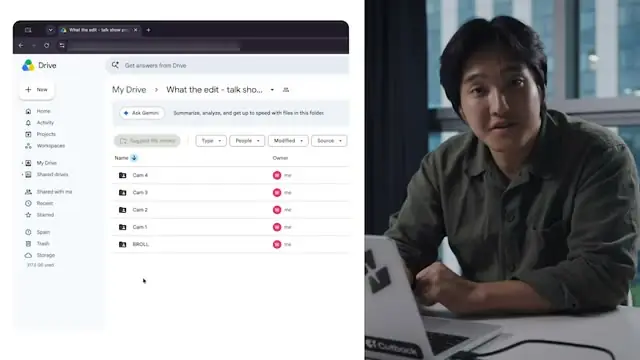
Drop in the folder of raw media
Sync it, then ask for the edit
Export the video, or hand it off
Ask for a 12-minute cut that keeps the story and drops the tangents. Selects watches all of the footage, builds the draft on a real timeline, and takes your notes from there.
Said the intro three times? Ask chat to group the takes of each line and keep the best one. Disagree with a pick, and swap another take in by asking or by hand.
"Cut to the night market whenever I talk about dinner." Scene search finds shots by what's on screen, and chat shows you where each one goes before it lands on the timeline.
Ask chat to check the footage and Selects marks every shaky, blurry and out-of-focus stretch. Say "fix the blurry shots": on one camera they come out of the cut, and on multicam it cuts to a clean angle of the same person. The files you shot stay untouched.
| Editing 8h raw video | Editing manually | Selects |
|---|---|---|
| Total time | 6h 30m | 0h 20m |
| Multicam sync | 1h | included |
| Chunk into topics | 1h | included |
| Color label | 30m | included |
| Delete unnecessary clips | 1h | included |
| Transcribe | Impossible | included |
| Cut long silences | 1h | included |
| Cut filler words | 1h | included |
| Switch camera by speaker | 1h | included |
Professionals are already seeing the payoff.
The client said they wanted it super fast.And the only reason I'm not worriedis because we are using Selects.
The Chef Gal (@dachefgyal)
DP, Producer & Editor based in NYC
This will actually look at the video,and it'll catch those reaction shots,those subtleties that all others are gonna miss.
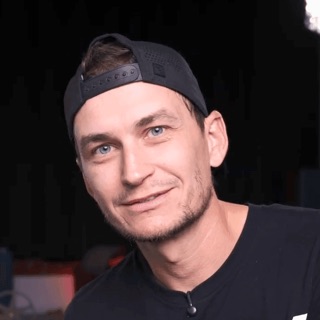
Brent Pierce
Podcast Studio & Video Production Company Owner
Honestly,this is one of the best editing toolsI've tried in a long time.
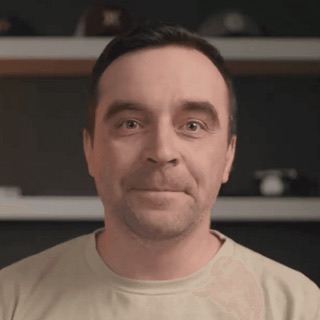
Serge Morgotch
Video Editing Educator & Creator
This is what AI should really be about,helping us filmmakersrather than taking our job.
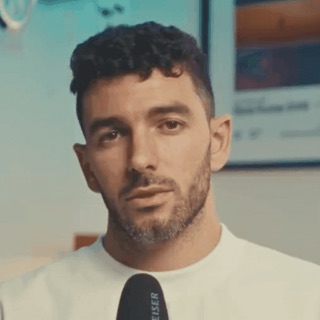
Luca Epifani
Filmmaker & Video Creator
A brand-new AI editing softwarethat has literally changedmy 20-year workflow overnight, permanently.

DJ Kerr
Video Editor / Motion Graphics Artist
The client said they wanted it super fast.And the only reason I'm not worriedis because we are using Selects.
The Chef Gal (@dachefgyal)
DP, Producer & Editor based in NYC
This will actually look at the video,and it'll catch those reaction shots,those subtleties that all others are gonna miss.
Brent Pierce
Podcast Studio & Video Production Company Owner
Honestly,this is one of the best editing toolsI've tried in a long time.
Serge Morgotch
Video Editing Educator & Creator
This is what AI should really be about,helping us filmmakersrather than taking our job.
Luca Epifani
Filmmaker & Video Creator
A brand-new AI editing softwarethat has literally changedmy 20-year workflow overnight, permanently.
DJ Kerr
Video Editor / Motion Graphics Artist
It watches and transcribes every clip from the shoot, so you can ask for a rough cut instead of reviewing it all yourself.
Ask for the story you want: a 12-minute cut of the trip in order, pieces to camera first, B-roll of the food whenever I talk about dinner.
Yes. Scene search finds moments by what's on screen, like the night market or the drive along the coast, and text search finds anything you said.
Only analyzed files are searchable.
Ask chat to check for them. Selects marks shaky, blurry and out-of-focus stretches, and fix the blurry shots cuts them out of single-camera footage.
Ask chat to group the takes of each line and keep the best one. If you disagree, swap another take back in by hand or by asking. Your source files are never changed.
About 20 minutes per hour of video, and there's no limit on how much footage a project holds.
Analysis runs on credits. Files you've already analyzed are never charged twice, so adding the last day's clips later only costs the new ones.
Yes. Hand off an .fcpxml with your cut, tracks and clip links to your original media. Adobe Premiere, DaVinci Resolve and Avid Media Composer work the same way.
Color, effects, titles and volume changes don't transfer, and transitions become cuts, so grade and mix in your editor. Or export the video from Selects and publish it straight to YouTube, up to 15 minutes long unless your channel is verified.
Explore our help center for all articles