




Each line matched to its take
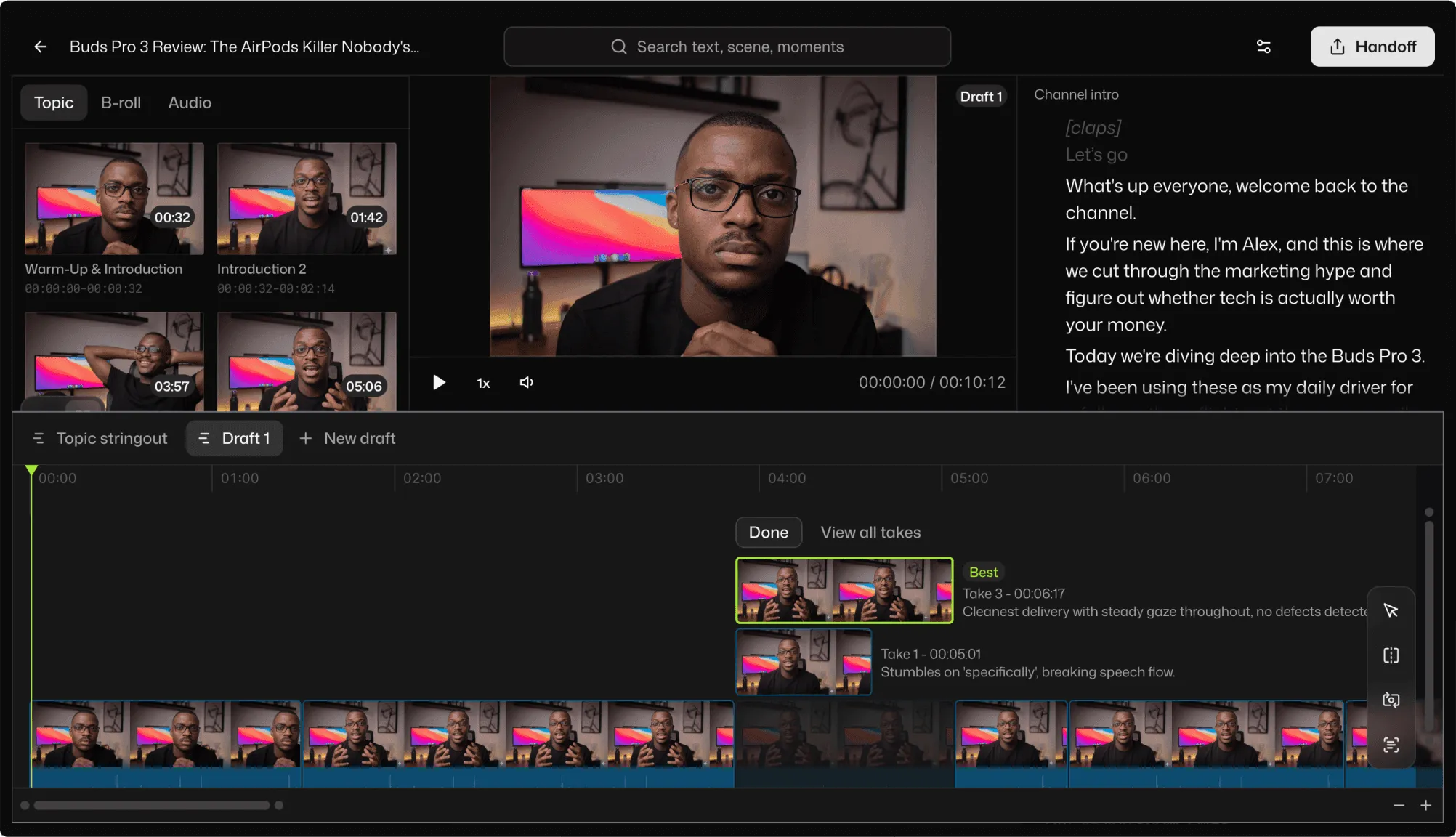
Attach the script in chat as a .docx, .pdf, .txt, .md or .srt, and Selects matches every line to the take where you said it, in script order. The cut lands on the timeline, ready for your notes.
Attach the script.
Get the cut in order.
Tutorial, product demo or course video, with every take you recorded.
Selects matches each line to its take, places the screen recordings, and lays it out on a real timeline.
You wrote the script in an hour and recorded it in another. Clear structure, clean delivery, a good take of almost every section.
Then the edit takes three more. Find the best take of each line, match the screen recording to what you're saying, drop in the B-roll, close the gaps between sections.
You already know what the video looks like. Getting there is mechanical, and Selects does the mechanical part.
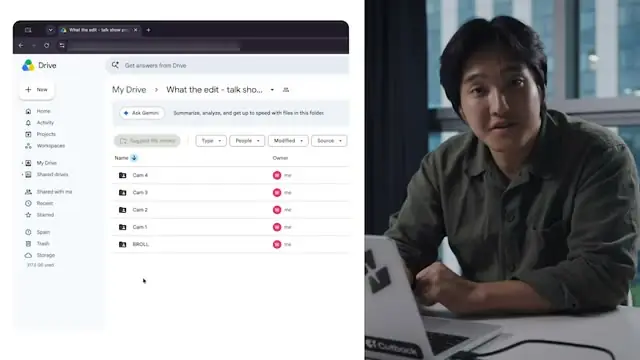
Drop in the folder of raw media
Sync it, then ask for the edit
Export the video, or hand it off
Attach the script in chat as a .docx, .pdf, .txt, .md or .srt, and Selects matches every line to the take where you said it, in script order. The cut lands on the timeline, ready for your notes.
Said the intro three times? Ask chat to group the takes of each line and keep the best one. Disagree with a pick, and swap another take in by asking or by hand.
"Show the screen recording whenever I mention the export menu." Chat searches your analyzed footage, then shows you where each clip goes before it places them.
Remove silence closes the pauses between sections to a preset or your own timing, like nothing over 0.8 seconds. Cut filler words takes out hesitations, hedging and repeats on English recordings. Restore puts either back.
| Editing 2 cam · 30m raw video | Editing manually | Selects |
|---|---|---|
| Total time | 2h 30m | 0h 20m |
| Multicam sync | 30m | included |
| Cut according to script | 1h | included |
| Compare best takes | 1h | included |
| Transcribe | Impossible | included |
| Cut long silences | 30m | included |
| Cut filler words | 30m | included |
Professionals are already seeing the payoff.
The client said they wanted it super fast.And the only reason I'm not worriedis because we are using Selects.
The Chef Gal (@dachefgyal)
DP, Producer & Editor based in NYC
This will actually look at the video,and it'll catch those reaction shots,those subtleties that all others are gonna miss.
Brent Pierce
Podcast Studio & Video Production Company Owner
Honestly,this is one of the best editing toolsI've tried in a long time.
Serge Morgotch
Video Editing Educator & Creator
This is what AI should really be about,helping us filmmakersrather than taking our job.

Luca Epifani
Filmmaker & Video Creator
A brand-new AI editing softwarethat has literally changedmy 20-year workflow overnight, permanently.

DJ Kerr
Video Editor / Motion Graphics Artist
The client said they wanted it super fast.And the only reason I'm not worriedis because we are using Selects.
The Chef Gal (@dachefgyal)
DP, Producer & Editor based in NYC
This will actually look at the video,and it'll catch those reaction shots,those subtleties that all others are gonna miss.
Brent Pierce
Podcast Studio & Video Production Company Owner
Honestly,this is one of the best editing toolsI've tried in a long time.
Serge Morgotch
Video Editing Educator & Creator
This is what AI should really be about,helping us filmmakersrather than taking our job.
Luca Epifani
Filmmaker & Video Creator
A brand-new AI editing softwarethat has literally changedmy 20-year workflow overnight, permanently.
DJ Kerr
Video Editor / Motion Graphics Artist
Attach the script in chat and Selects matches each line to the take where you said it, in script order.
Scripts can be .txt, .md, .docx, .pdf or .srt, under 10 MB and 45,000 characters. Scanned PDFs can't be read, so paste the text instead.
Yes. Ask chat to group the takes of each line and keep the best one, then swap any line back to another take by asking or by hand on the timeline.
Your source files are never changed, so every take you recorded is still there.
Yes. Ask in plain words, like show the screen recording whenever I mention the export menu, and chat proposes where each clip goes before it commits.
Chat searches analyzed footage only, so analyze the screen recordings along with the camera files.
Yes. Remove silence cuts the pauses with a preset (No gap, Short or Medium) or your own timings, and Restore puts them back.
Cut filler words takes out hesitations, hedging and repeats on English recordings.
Analysis takes about 20 minutes for every hour of video, so a 30-minute tutorial is ready in about 10. You can keep working while it runs.
Yes. Hand off a .prproj for Adobe Premiere, an .fcpxml for Final Cut Pro, a .drp for DaVinci Resolve or an .aaf for Avid Media Composer, with your cut, tracks and clip links to the original media.
Captions come across as text and timing, and topic titles can arrive as markers in Premiere and Resolve. Effects, color, zooms and text overlays don't, and transitions become cuts.
Explore our help center for all articles