Edit videos with MCP.
Actually edit it.
The Selects MCP connects your AI agent to real footage: every camera angle, every audio track, every frame.
Free API key, 60-second setup
I've been waiting for an MCP that returns more than text. This one ships back an Adobe Premiere project. Game changer.
Developer + creator
I prompt Claude and Selects gives me a real multicam timeline. The first MCP that does actual editing work.
AI-native video editor
ChatGPT, Claude reads and writes. But it can't watch video.
Claude is incredible at reasoning and code. People are pointing it at video, and the results look promising in demos.
But on real footage, it breaks down. Claude only reads the transcript. It never sees the frame. So the cuts land in the wrong places, there's no way to preview or fix the result, and multicam and motion graphics are off the table.
The bottleneck isn't intelligence. It's access. Claude has no way to see or manipulate your footage.
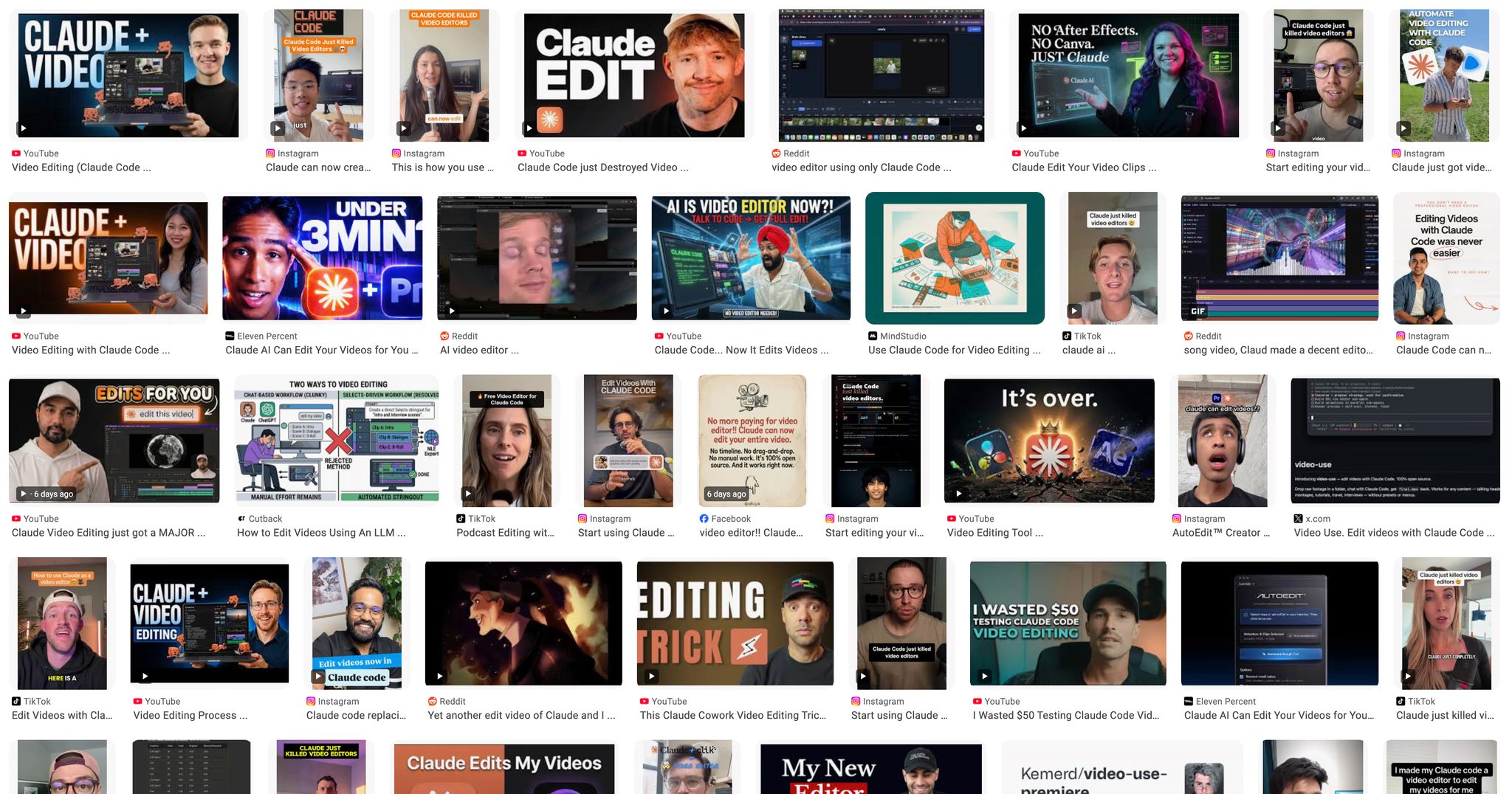
With Selects, Claude edits. You review.
Selects is a video editor that has already analyzed your project before you type a word. Every angle, every track, every scene change: indexed and searchable.
The MCP (an open protocol that lets AI agents control real software) connects that analysis directly to Claude, Codex in ChatGPT, or any compatible agent. Your agent stops guessing. It sees what's in the frame, makes cuts that land, previews them instantly, and runs multiple edits in parallel.
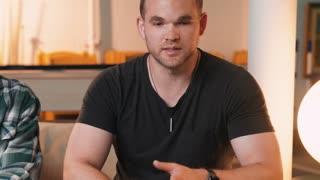





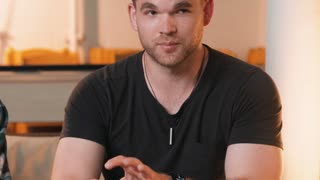




Unlimited workflows. One prompt each.
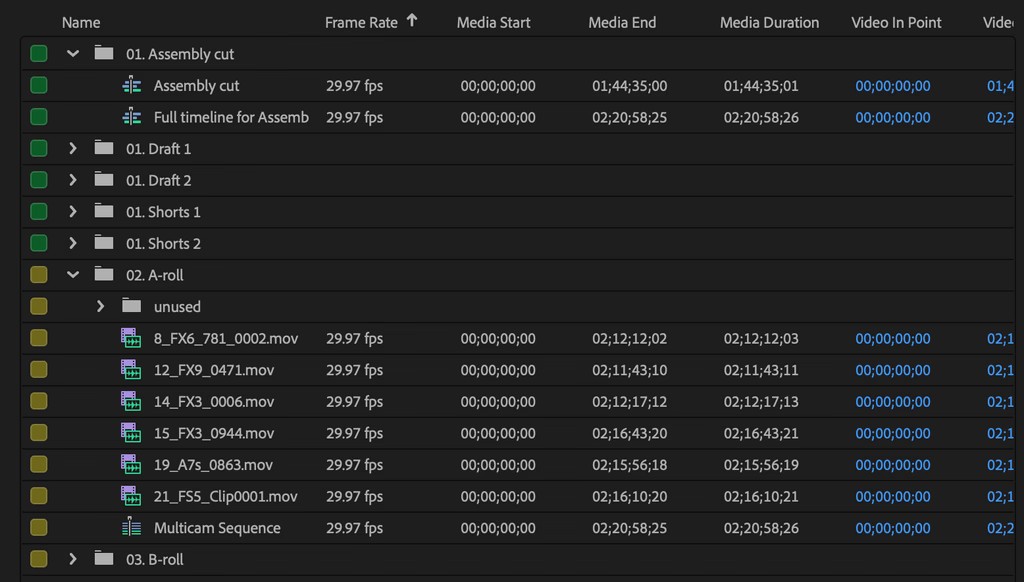
Organize footage into clean project structure
Analyze raw footage with Selects, and it enables Claude to understand it. Organize, sync, assemble everything and turn it into a neatly formed Adobe Premiere, Final Cut Pro, DaVinci Resolve or Avid Media Composer project.
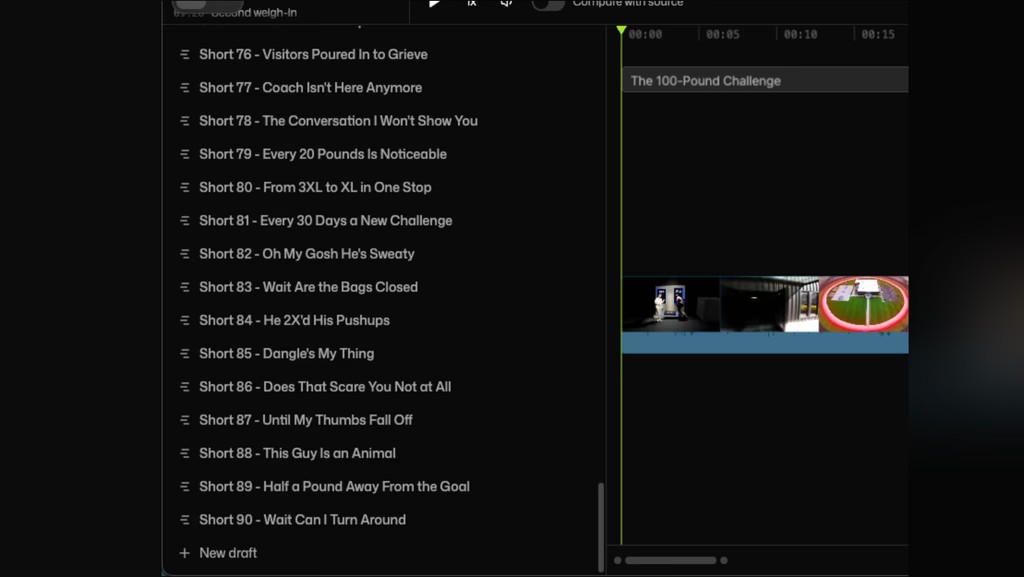
Your back catalog, turned into 100 shorts
It finds your strongest moments across every video and cuts them into short-form clips in one batch.
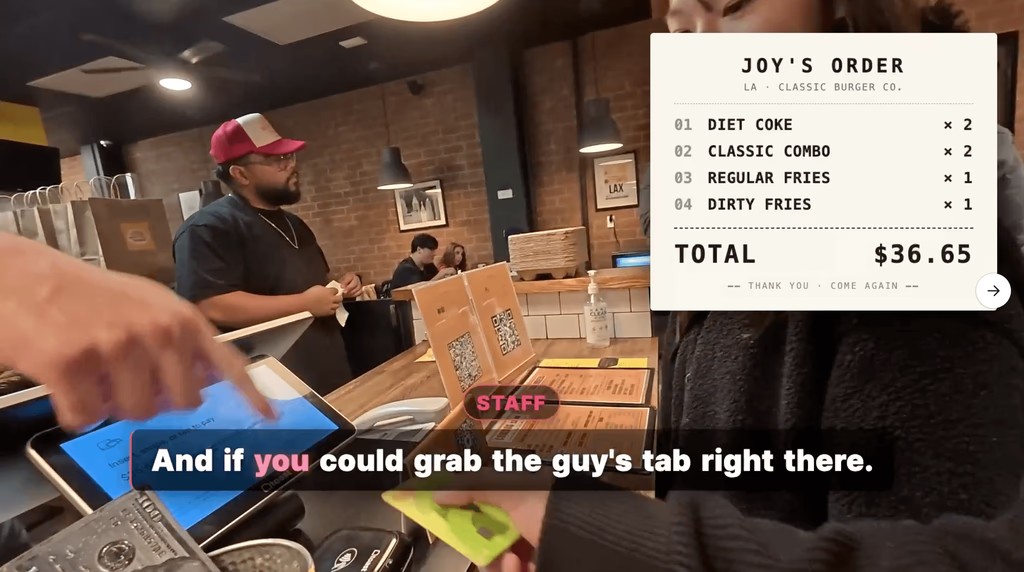
Graphics based on content
A host says “Sony A7IV.” Selects catches it, pulls the product image, drops in live pricing. Lower thirds, topic cards, checklists, the possibilities are endless.
We measured Claude alone. It breaks.
11/11
Cuts that landed mid-sentence with Claude alone
93%
Target duration miss (Claude planned 299s, delivered 578s)
10 ms
Selects timing precision (Claude alone: ~120 ms)
| Step | Claude alone | Selects MCP |
|---|---|---|
| Multicam sync | broken | done |
| Topic chunking | broken | done |
| Color labels | broken | done |
| Drop bad takes | broken | done |
| Transcribe | impossible | done |
| Remove silences | broken | done |
| Remove filler words | broken | done |
| Speaker-based cam switch | broken | done |
Setup the MCP
Download Selects
Free. Mac and Windows.
Connect your agent
Selects Home → Profile
Claude Code · Claude Desktop · Codex in ChatGPT · OpenClaw
Prompt your first edit
into your agent, and it will utilize Selects for organizing and editing.
Works with
- Claude Code
- Claude Desktop
- Codex in ChatGPT
- OpenClaw
Handoff to
 Adobe Premiere
 Final Cut Pro
 DaVinci Resolve
 Avid Media Composer
FAQ
What does Selects do?
It assembles the raw footage for you in 1 click.
Use Selects after shooting the video, and before you start your NLE. Get your raw footage prepped with the grunt work already complete, hand off to Adobe Premiere, Final Cut Pro, DaVinci Resolve or Avid Media Composer to continue on the creative work.
What gets done
- Sync multicam, video & audio
- Define speaker persona
- Select best audio per speaker
- Chunk long clips into topics
- Transcribe by speaker
- Analyze visual highlights and bad shots
- Cut long silences and filler words
- Cut out unnecessary clips
- Auto switch multicam
- Create NLE tailored project files
Great for these videos
- Expert interview
- Video Podcast
- Talking head video
- Events
- Vlog
How long does it take to process my footage?
A 2-hour multicam shoot typically processes in 20 minutes.
Processing time depends on file size and number of cameras.
Can I edit videos directly in Selects?
Yes, Selects has an editing environment with timeline shortcuts that mirror Adobe Premiere, Final Cut Pro and DaVinci Resolve.
It also includes text-based editing, natural language visual search.
But most professional editors use Selects for the prep and assembly, then hand off a structured project file to Adobe Premiere, Final Cut Pro, DaVinci Resolve, or Avid Media Composer for the final creative cut. It fits into your existing workflow rather than replacing it.
How is Selects different from other AI editing tools?
Most AI video editing tools work inside their own environment and produce a finished video you can't easily take further.
Selects is built for professional post-production workflows to handle the part before the edit: syncing multicam, organizing footage into topics, selecting the best audio, and removing dead air. The output is a structured project file that drops straight into your NLE. Editors stay in Adobe Premiere, Final Cut Pro, DaVinci Resolve, or Avid Media Composer. Nothing changes on their end except they're starting from a clean, organized stringout instead of hours of raw footage.
Can I use Selects for short-form content, not just long-form?
Absolutely.
Selects works for any format where you're dealing with more raw footage than you need, whether that's a 90-second TikTok episode cut from a 2-hour shoot, or a 10-minute YouTube video from a full day of filming.
You can chat about your preferred clip length and pacing, and get a highlight-ready stringout in minutes. The shorter your final output relative to your raw footage, the more time Selects saves you.
How do I continue editing on Adobe Premiere?
- 1.Select a timeline in Selects.
- 2.Click the Continue in Premiere / Handoff button in the top right corner.
- 3.Review preferences and set it to your liking.
- 4.An Adobe Premiere project file will be created for you to continue editing right away.
How do I continue editing on Final Cut Pro?
- 1.Select a timeline in Selects.
- 2.Click the Continue in Final Cut Pro / Handoff button in the top right corner.
- 3.Choose a location to save the Final Cut Pro XML file.
- 4.In Final Cut Pro, go to File > Import > XML… and select the saved XML file to import the project.
How do I continue editing on DaVinci Resolve?
- 1.Select a timeline in Selects.
- 2.Click the Continue in DaVinci Resolve / Handoff button in the top right corner.
- 3.Review preferences and set it to your liking.
- 4.A DaVinci Resolve project file will be created for you to continue editing right away.
How do I continue editing on Avid Media Composer?
- 1.Select a timeline in Selects.
- 2.Click the Continue in Avid Media Composer / Handoff button in the top right corner.
- 3.Choose a location to save the AAF file.
- 4.Double-click the saved file to open it in Media Composer and continue editing right away.
Explore our help center for all articles