OpusClip, Submagic and more: the 2026 all-in-one AI video editor guide
Tired of rising video tool subscriptions? See how Selects combines AI editing, clips, captions, generation and custom apps in one workflow.
TLDR: If video subscriptions are eating into your budget, Selects brings AI editing, clipping, captions, layouts and video, image and voice generation into one app. You can edit by chatting, use professional editing controls when you need them, and build your own tools without coding. Supported generation models use the same Selects credit balance, so you can use them without maintaining a separate subscription for each provider. The editor is free; AI processing uses credits.
The renewals start to add up. A clipping subscription, a caption subscription, a voice generator, an AI video generator, an editor with its own paid features. Each made sense when you signed up. Together, the monthly cost starts to feel hard to justify, especially when several tools cover parts of the same job.
You might use OpusClip for podcast clips, Submagic for animated captions, CapCut for caption styling, Descript for transcript editing, Higgsfield for generated footage, Nano Banana for images, ElevenLabs for narration, and HeyGen for presenter videos. Add a few plugins and there are more bills to track before you have published anything.
Selects is an all-in-one AI video editor built to bring that work into one place. The appeal is straightforward: make the video with the features already in the app, rather than subscribe to another service for each step.
Why pay for a separate tool at every step?
Here are common reasons creators add these tools to their stack. Each product has a wider feature set; the table shows where the subscriptions often begin.
| Tool | A common reason to add it |
|---|---|
| OpusClip | Turn podcast episodes into short clips |
| Submagic | Add animated captions and style short-form videos |
| Descript | Edit recordings through a transcript and use AI audio and video tools |
| Higgsfield | Generate or restyle video and create AI images |
| Nano Banana | Generate and edit images |
| ElevenLabs | Generate narration and work with AI voices |
| HeyGen | Make avatar-led presenter videos and translated video content |
| CapCut | Generate captions and style them for social videos |
| Editing plugins | Add particular controls or automate repeated tasks in an editor |
The cost is easier to notice than the overlap. A tool you bought for captions may now generate B-roll. Another can clip the podcast, but you still export it to an editor for the layout you want. You can end up paying for several versions of the same capability while moving files between them.
With Selects, clipping, caption styling, layouts, effects, generated media and editing controls are available together. You can start with the built-in tools and complete the edit in the same app. Explore the Selects editor.
An AI video editor with professional editing capabilities
Tell Selects what you want to make. Ask it to find the relevant material, make a cut, add captions or revise a section. You do not have to learn a complicated editing workflow before giving your first note.
For an interview, an example brief might be:
Keep the part where she explains why the first launch failed. Turn it into a short vertical clip, add captions and keep the product demonstration visible.
Then give the next note in the same conversation:
Keep the sentence before that answer. Make the captions smaller and give the product shot more time on screen.
The result stays editable. If you want to make a precise adjustment yourself, Selects also has professional controls for cuts, keyframes, color, graphics and caption styling. AI can handle the broad pass while you make the creative decisions that need a closer look. How chat editing works.
The clip generator and video templates cover recurring work such as finding highlights, reframing, styling captions and arranging layouts. These capabilities are built into Selects; they do not require a separate clipping or caption service subscription. See the Selects clipping workflow for turning a long video into short clips.
Skip separate subscriptions. Use Selects credits for what you make.
You should not have to buy an entire subscription just to use one model or make an occasional generation. Selects brings the major video, image and voice models into the editor, so you can use one credit balance for the work you actually need.
Bringing your models into one editor does not have to mean paying more for generation. Costs vary by model and settings.
Text-to-video, text-to-image and text-to-audio are part of the same workflow. Describe a shot, an image or a voiceover, choose a model and generate it inside your project.
| What you need | Major models available in Selects |
|---|---|
| Text-to-video: generate or restyle video | All major video models, including Kling, Seedance 2.5, Seedance 2.0 Fast and Higgsfield Genjutsu |
| Text-to-image: generate images | All major image models, including Nano Banana Pro, GPT Image 2 and Seedream 5 Pro |
| Text-to-audio: generate speech and narration | All major voice models, including ElevenLabs v3, MiniMax Speech 2.8 HD and Seed Audio 1.0 |
Use the model that suits each part of the video without maintaining a separate subscription and allowance with every provider. Selects credits are deducted for the AI work you run. A generated product shot, background image or voiceover can go straight into the edit you are already working on.
The credit cost depends on the operation and model. Where an advance estimate is available, it appears before generation; otherwise, the charge appears with the completed result. Track that usage in one place instead of paying for multiple services whose features you only partly use.
For the workflow, see Selects' guides to video generation, image generation and audio generation.
Build the feature you wish a plugin had
You filmed an interview with one camera, but the edit would benefit from another angle. Instead of searching for a plugin, describe a custom app that generates the extra view and brings it into your edit:
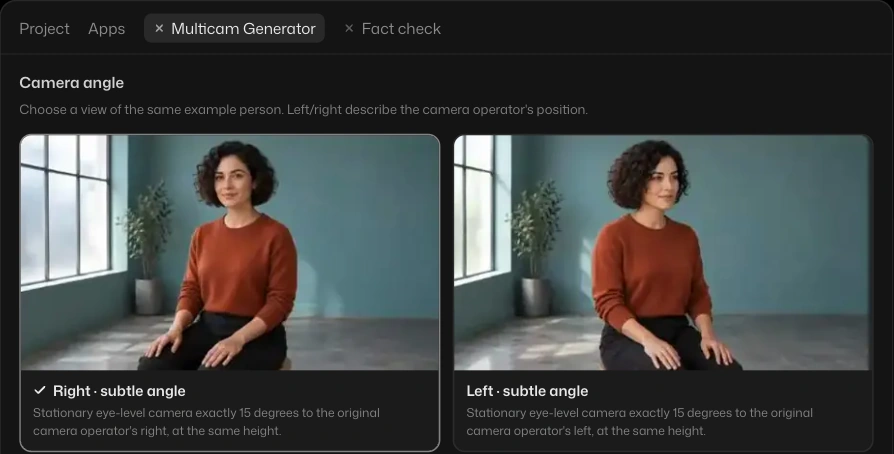
Build an alternate-angle app for this interview. Let me select a section, choose a new camera angle and generate a side view I didn't film. Show me a preview, then add the version I approve as another angle in the edit.
The extra angle is AI-generated. Review the person's appearance, mouth movement and continuity with the original shot before using it.
The app gives you a workflow you can use again: choose the source section, set the angle, preview the result and add the selected take. You do not need to write code. This is vibe coding for video: describe the tool, let AI build it, then ask chat to refine how it works.
Custom tools are currently part of the new Selects beta, enabled through Try the new Selects on the Home screen. How custom tools work.
Use Selects from your AI assistant with MCP
Selects also supports MCP, or Model Context Protocol, a connection that lets an AI assistant work with your Selects project. Connect Claude Desktop, Claude Code or Codex, then describe the edit in that assistant instead of switching into a separate editing conversation.
For example:
Use Selects to turn this podcast into three short clips. Add captions, keep each guest visible and let me review the drafts.
Connect from Connect MCP in your Selects profile menu and keep Selects open while you work. Your assistant handles the conversation; footage analysis and generated media still use Selects credits. Selects MCP setup.
What one project can look like
Suppose you are turning a customer interview into a short product video. In Selects, the workflow can stay together:
- Make the cut. Ask chat to keep the answer that explains the customer's problem.
- Create the social version. Reframe the shot and apply a caption and layout template.
- Fill a visual gap. Generate a relevant image or shot inside the project.
- Add narration if needed. Write the line and generate a voice using an available model.
- Finish the details. Give another chat note or adjust the edit by hand, then export.
That brings together work you might otherwise split across a clipping tool, caption tool, generator, voice service and editor. The benefit is fewer subscriptions for those jobs and fewer exports between them.
What does Selects cost in 2026?
Selects' ongoing video editor and export are free. The Starter plan is US$20 per month on monthly billing, with 3,600 Selects credits per month for credit-consuming work. Current Selects pricing.
Built-in chat, footage analysis and generated media use credits. Start with the free editor, then choose a credit plan around the AI work you actually do. The monthly subscription replaces the need to maintain separate provider subscriptions for models you use through Selects; your usage still determines how far the included credits go.
Questions about an all-in-one AI video editor
Can Selects replace OpusClip, Submagic and CapCut in my workflow?
It can cover overlapping jobs such as clipping, captions, reframing, layouts and editing in one app. Whether it replaces your existing setup depends on the features you use for finished work. If those jobs are why you maintain several subscriptions, try completing them together in Selects.
Can I use AI video, image and voice models without separate subscriptions?
Yes, for the models integrated into Selects. Use the model options inside the app and pay with Selects credits. Available models and generation costs can change; consult the current model picker and linked guides.
Do I need coding skills to create a custom Selects app?
No. Describe the task and the controls in chat, and Selects builds the tool inside the app. Custom tool creation is currently part of the new Selects beta.
Is Selects free if I use AI?
The editor and export are free. AI operations such as built-in chat, footage analysis and generation use credits. A paid plan adds a monthly credit allowance; it does not make all AI use unlimited.
Start with the video you need to finish this week. Bring the clipping, captions, generated visuals and final edits into Selects, and see which separate subscriptions that workflow still needs.