The 7 Best Podcast Editing Software Tools for Video in 2026
The best podcast editing software for a video show: Descript, Riverside, Premiere, Resolve, Eddie AI, Audacity and Selects on price and limits.

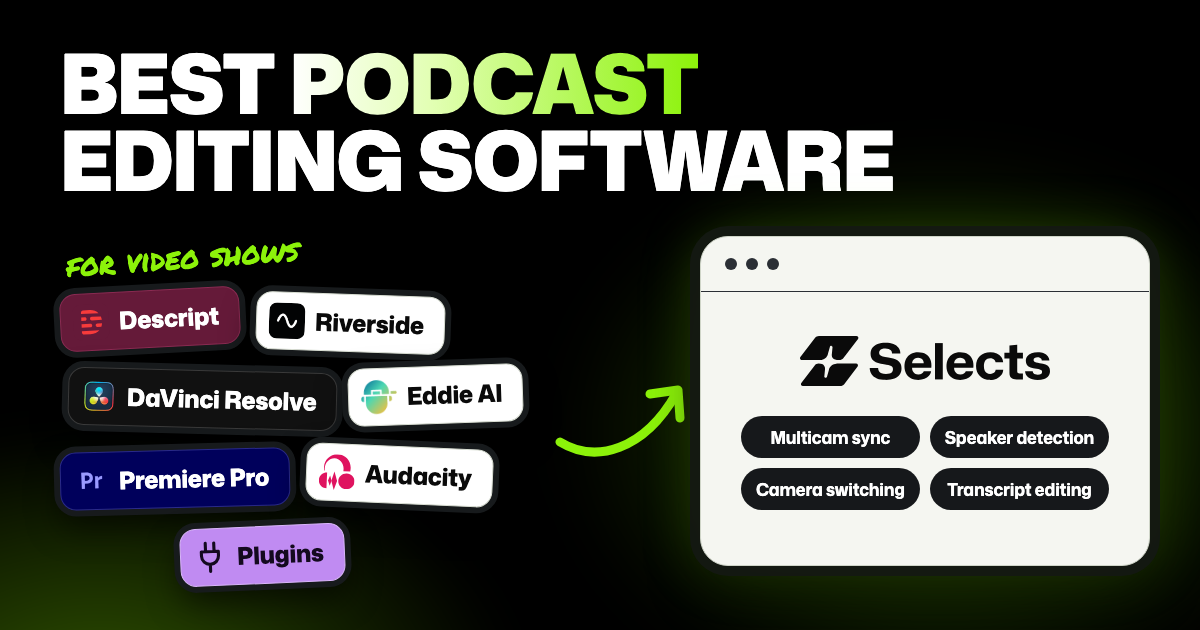
TLDR: For professional editors cutting a video podcast on several cameras, Selects is the specialized pick. Sync, speaker detection, a word-level transcript and camera switching are native features, so the rough cut arrives ready to review. Riverside suits shows that record guests online, and Audacity covers an audio-only show for free.
Every week, you edit a video podcast: two or three people, one to three cameras and a mic each. Now you need software that turns those files into a YouTube episode, plus a few short clips, without a day of prep first. Here's the best podcast editing software for that job: seven tools, plus the plugins Premiere editors add. For each, you'll see what it does well, where it falls short and what it costs.
- Audio-only show and no budget? Audacity is free and does the job. You don't need anything else.
- Before you pay for any tool, try it on a full episode, not a 5-minute sample. Long files are where AI video editors break.
We make Selects and the Premiere Assistant plugin, two of the tools below. Prices come from each tool's own pricing page, checked October 30, 2026, in US dollars. They change often, so check the link before you buy.
What a podcast video editor has to do
On a video show, clean sound is only part of the job. You also sync every camera and mic, which means lining them up so the sound matches the picture.
Then you switch to whoever is talking, cut the ums and pauses, and make clips. Automatic camera switching saves hours on a multi-camera show, and it's the hardest part for an AI to get right.
The tools at a glance
| Tool | Cheapest paid plan | Footage you can edit | AI processing | Automatic camera switching | Voice cleanup |
|---|---|---|---|---|---|
| Descript | $24 a month, or $16 billed yearly (Hobbyist) | 10 hours of media a month | 400 AI credits a month for tools like Studio Sound and Underlord (how it works) | Yes (Automatic Multicam) | Studio Sound |
| Riverside | $29 a month, or $24 billed yearly (Pro) | Recording unlimited; 15 hours of uploaded files a month (limits) | Unlimited transcription; Magic Clips use no credits; 2,000 starting AI credits for extras like AI B-roll (pricing FAQ) | Yes (AI layouts that follow the speaker) | Audio enhancement |
| Premiere Pro | $22.99 a month (annual plan, billed monthly) | No limit | 25 generative credits a month for Generative Extend; Speech to Text and Enhance Speech are included | Not listed (needs a plugin, see below) | Enhance Speech |
| DaVinci Resolve | Free; Studio $295 once | No limit | No credits in Studio (AI runs on your computer) | Studio only (Multicam SmartSwitch) | Studio only (Voice Isolation) |
| Eddie AI | $10 once for 1,000 credits | Pay as you go: about an hour of footage per 1,000 credits | Comes out of the same credit packs | Yes | Yes, inside Eddie only |
| Audacity | Free | No limit (audio only) | Not listed | No video | Noise reduction |
| Selects | Free editor; $20 a month, or $16 billed yearly (Starter) | No limit (the editor is free) | 10 hours of analysis a month on Starter (each camera counts) | Yes | Reduce noise and Enhance voice |
Desktop editors like Premiere Pro, Resolve and Selects don't limit the footage you edit yourself. The limits apply to AI processing. "Not listed" means the tool's own pages don't give a number.
In Selects, footage uses credits only when you choose to analyze it. Built-in chat and generated media draw on the same credits.
What happened when we tested five AI tools on one podcast
A professional editor on our team ran the same video podcast through five AI tools. They were Selects, Claude on its own, and the AI helpers built into three editors. Those were Premiere Pro's AI Assistant, Descript's Underlord and CapCut's EditPilot.
Every tool except Selects failed on footage longer than an hour. To compare them at all, all five had to run on the same 30-second clip. Each got the same request: "Switch cameras based on speaker and reaction."
| Tool | What it did |
|---|---|
| Premiere Pro | Cut to an unimportant camera and left an awkward jump cut (a jarring skip in the picture) |
| Descript | Left an awkward jump cut and missed reaction shots |
| CapCut | Reused clips, missed reactions, and deleted and rearranged clips nobody asked it to touch |
| Claude | Cut to an unimportant camera and switched too fast |
| Selects | Switched naturally, showed close-ups with the best reactions, and hid jump cuts with camera switches |
It was one run per tool, so treat it as a first look, not a final verdict. Riverside, Resolve, Eddie AI and the Premiere plugins weren't in the test. Here are the full results on our comparison pages.
In my experience, this is where analysis matters. Without exact timing for every word and who is speaking, an AI is guessing where a sentence starts and ends. On a podcast, that shows up as cuts that clip a word or stay on the wrong person.
Descript
- Good at: audio-first shows and remote guests. You can record guests online in Descript, and Studio Sound makes voices sound like they were recorded in a studio. You edit by editing the transcript: delete a sentence in the text and it's gone from the video. It also cuts filler words, and Automatic Multicam puts the speaker on camera.
- Bad at: long episodes, camera switching and stability. In our test, Underlord failed on footage over an hour, missed reaction shots and left an awkward jump cut. Users also report crashes and freezes. On Trustpilot, Descript scores 2.6 out of 5 from 292 reviews, and recent reviews mention the app freezing or crashing while rendering. Its own 2026 release notes list repeated fixes for exports and publishes that hang or fail. Hobbyist covers 10 hours of footage a month, and the free plan exports at 720p with a watermark.
- Price: free plan, then Hobbyist at $24 a month ($16 billed yearly) or Creator at $35 a month ($24 billed yearly). See Descript's pricing.
- Best for: audio-first shows and remote interviews, edited mostly as text.
Riverside
- Good at: recording and editing in one place. Guests join from a browser link, and each person gets separate audio and video tracks that Riverside says are unaffected by the internet connection. You edit by editing the transcript, the layout switches to whoever is talking, and Magic Clips cuts short clips for you.
- Bad at: the free plan and long uploads. Free exports at 720p with a watermark, and removing silences and filler words needs Pro. Pro covers 15 hours of uploaded files a month, each up to 4 hours and 25 GB.
- Price: free plan, then Pro at $29 a month ($24 billed yearly). See Riverside's pricing.
- Best for: shows with remote guests who record in Riverside anyway.
Adobe Premiere Pro, with or without plugins
- Good at: everything a professional editor needs, including effects, color and graphics that go deeper than any tool here. It has Enhance Speech for clearer voices. Its transcript also finds filler words like "uh" and pauses, so you can delete them all at once.
- Bad at: switching cameras for you, and being easy to learn. Adobe's pages don't list automatic camera switching. In our test, its AI Assistant cut to an unimportant camera and left an awkward jump cut.
- Price: $22.99 a month on an annual plan, billed monthly. There's a 7-day free trial. See Adobe's Premiere Pro plans.
- Best for: people who already edit in Premiere and want to stay there.
Why Premiere editors end up buying plugins
Premiere can sync cameras by sound and lets you switch angles by hand. It doesn't switch cameras for you. Editors keep asking Adobe for built-in camera switching instead of plugins like Autopod.
Some also find Premiere's audio sync unreliable compared to PluralEyes, the sync app many editors used for years. PluralEyes is now in limited maintenance mode, and Syncaila is one of the apps editors use instead.
So a Premiere podcast setup often means two or three purchases: the editor, a camera-switching plugin and sometimes a sync app. The common switching plugins are Autopod, FireCut, AutoCut and our own Premiere Assistant, and most also work in DaVinci Resolve. What each setup costs in total is in the table further down.
DaVinci Resolve
- Good at: the free version is a complete professional editor for Mac, Windows and Linux. It can edit several cameras by hand and has a full set of audio tools.
- Bad at: its own AI podcast tools need the paid Studio version. That covers transcripts, automatic camera switching (Multicam SmartSwitch) and Voice Isolation (Studio feature list), which pulls voices out of background noise. It also takes a long time to learn.
- Price: free, or $295 once for Studio (on sale for $236 when we checked). See DaVinci Resolve Studio.
- Best for: people who want full control, no monthly bill and time to learn.
Eddie AI
- Good at: syncing cameras, even by picture. If a camera has no usable sound, Eddie can match it by a clap or flash all cameras saw. It cuts to whoever is talking by voice and face, and suggests filler and pause cuts for you to review. Then it sends the edit to Premiere Pro, DaVinci Resolve or Final Cut Pro (Avid is in beta).
- Bad at: predictable costs and cleanup that travels. You pay by the work, so an episode's cost varies, though Eddie shows an estimate before big jobs. Its voice cleanup plays only inside Eddie and in videos Eddie exports itself. It doesn't come along when you send the edit to another editor.
- Price: 500 free credits for new accounts, then one-time packs from $10 for 1,000 credits, which Eddie says covers about an hour of footage. See Eddie AI's pricing.
- Best for: editors who finish in another editor and want to pay per project, not per month.
Audacity
- Good at: it's free and open source, on Windows, Mac and Linux. It removes background noise and has the effects most voices need.
- Bad at: video. It edits audio only.
- Price: free. See Audacity's download page.
- Best for: audio-only podcasts on no budget. It's our pick for an audio show.
Selects
Selects is an AI video editor built for professional podcast editors. Sync, speaker detection, the transcript, text-based editing and camera switching are native features, with no plugins required. You don't buy a separate sync app or switching plugin, and the timeline editor is in the same app.
- Good at: multi-camera podcasts, start to finish, in one app. The table below shows what each built-in tool does. When you're done, you can send the edit to Premiere Pro, Final Cut Pro, DaVinci Resolve or Avid.
- Bad at: recording, and syncing by picture. It doesn't record, so remote guests need another tool. It can't line up a camera that has no usable sound or timecode. The Cut filler words tool only works in English. In other languages, ask chat to remove the words you don't want from the transcript. Effects, color and text don't carry over when you send an edit to another editor.
- Price: the editor is free. The AI features need analysis first: Selects watches and listens to every file so it knows who's talking and when. Analysis, Enhance voice and the built-in chat use credits. Connect your own paid ChatGPT or Claude plan and chat runs on that instead. Reduce noise runs on your computer and uses no credits. New accounts get 1,800 free trial credits, then plans start at $20 a month. See what each Selects plan includes.
- Best for: professional editors and studios cutting multi-camera video podcasts and interviews, especially a weekly series. It also edits almost any video you film yourself: YouTube videos, vlogs, tutorials, courses, short clips and event videos.
| Built into Selects | What it does for a podcast edit |
|---|---|
| Sync | Lines up 10 or more cameras plus separate mics, by sound or by timecode (a clock signal some cameras record) |
| Speaker detection | Knows who is speaking by face and voice, even when everyone shares one mic |
| Word-level transcript | Times every word, so cuts land between words, not in the middle of one. You edit by editing the text |
| Camera switching | Follows the speaker, cuts to real reactions like a laugh or a nod, and hides jump cuts by switching cameras at the cut. It can skip blurry shots, or a camera while it's moving |
Analysis counts every file, not just the episode length. A one-hour episode on three cameras with three mic files uses 1,260 credits: 360 for each camera hour, plus 60 for each mic hour. The free trial covers one episode like that.
Edit a series the same way every week
Most podcasts are a series, and each episode gets the same edit: same intro, same pacing, same camera rules. In Selects, you can save that as a skill, a set of instructions in your own words.
Tell chat what you want, like "keep every story, cut setup chatter, hold each camera for at least five seconds." Then ask it to save that for next time.
On the next episode, ask for a rough cut with that skill. It follows your saved rules, so you go straight to review.
One small business owner who uses Selects to edit their podcasts described exactly this in a G2 review. They saved their usual instructions as a list called "the usual." Now each new project starts with one request: "analyze and run the usual."
What a full podcast setup costs
Here's what one editor pays each month for a weekly show, with sync, camera switching, a transcript and a timeline editor. Prices as of October 30, 2026. Premiere's $22.99 is its annual plan, billed monthly.
| Setup | Monthly cost | One-time cost | What to know |
|---|---|---|---|
| Premiere Pro plus Autopod | $51.99 ($22.99 + $29) | None required. Syncaila costs $125 to $249 if Premiere's sync isn't enough | Autopod: up to 10 speakers, with a separate mic track for each. 30-day free trial |
| Premiere Pro plus FireCut Pro | $42.99 ($22.99 + $20, FireCut billed yearly), or $56.99 billed monthly | None required. Syncaila costs $125 to $249 if Premiere's sync isn't enough | Camera switching needs FireCut's Pro plan |
| Premiere Pro plus AutoCut AI | $37.89 ($22.99 + $14.90, AutoCut billed yearly), or $42.79 billed monthly | None required. Syncaila costs $125 to $249 if Premiere's sync isn't enough | Switching is AutoCut Angles, on the AI plan. Billed yearly, it's $178.80 up front |
| Premiere Pro plus Premiere Assistant Basic (ours) | $37.99 ($22.99 + $15), or $35.99 with Premiere Assistant billed yearly | None required. Syncaila costs $125 to $249 if Premiere's sync isn't enough | Up to 3 cameras. Premiere only |
| DaVinci Resolve Studio | None | $295 (on sale for $236 when we checked) | Camera switching is built into Studio. It takes a long time to learn |
| Selects Starter, 2 cameras and 2 mics | $20, or $16 billed yearly | None | 4 one-hour episodes use 3,360 of the 3,600 monthly credits (credits per hour). A 5-episode month needs a top-up |
| Selects Pro, 3 cameras and 3 mics | $100, or $80 billed yearly | None | 4 one-hour episodes use 5,040 of the 14,400 monthly credits. Or stay on Starter and buy about 1,440 extra credits (about $24, top-up price) |
Syncaila is $125 once for 3 tracks or $249 once for all tracks.
Selects isn't always the cheapest line. Resolve Studio costs less over time if you have the hours to learn it. What Selects saves is the setup: one app, one bill, and no plugins to install or keep updated.
Step by step: edit one video podcast episode in Selects
Here's how one episode of our own podcast goes from raw files to a finished episode in Selects. It runs 71 minutes, with five cameras and seven audio tracks. Each step shows the tool to use or the exact prompt to send.
Step 1. Import the files
Drag the episode folder, with every camera and audio file, into Selects. It becomes one project, and nothing is synced or analyzed yet.
For multi-camera footage, Selects suggests syncing first. Choose Skip sync and analyze now: that's Step 2.
Step 2. Analyze the footage
Analyze before you sync: Selects uses the analysis, including the transcript, to line the files up more accurately.
If you closed that message instead, click Analyze N clips at the bottom of the Project panel (N is your file count). Either way, check the credit estimate before you confirm.
Selects transcribes every file, works out who is speaking and reads what's on screen. Each camera counts toward the total, so a five-camera episode uses more credits than its length suggests.
Step 3. Sync the cameras and mics
I shot five cameras and seven audio tracks for one podcast episode. Put each camera and mic on its own track and sync them into one synced timeline.
Selects lines the files up by sound, or by timecode if your cameras record it. Asking chat uses Selects credits, or your own Claude or ChatGPT plan if you connected one.
To sync by hand instead, select the files in the Project panel, right-click and choose Sync to build the synced timeline. Then open Sync tools in the bottom-right corner and click Sync under Sync timeline. Syncing by hand uses no credits.
Step 4. Mute the camera mics and check the speakers
Open Sync tools in the bottom-right corner of the synced timeline. Under Mute noisy tracks, mute the cameras' built-in mics in their track headers, so only the clean mics are left. Click Mark as done, then click Update under Update data.
Under Speaker info, check that each person has the right face and mic. If Selects got a name wrong, click it, type the right name and click Save. Rename globally is picked by default and fixes the name everywhere, but only for a speaker with a face assigned.
Step 5. Ask for a rough cut
Read the whole conversation and build a rough cut of about 40 minutes. Keep complete stories and strong answers. Cut setup chatter, repeated questions and long tangents. Never cut mid-sentence.
Selects plans the structure, may ask a question or two, then builds the draft on the timeline. Watch it once from start to finish before you change anything.
Step 6. Remove long pauses and filler words
It's a podcast, so keep the cleanup light. Short pauses and the odd "um" are part of a real conversation.
Switch the Project panel to the Apps tab. In Remove silence, pick Medium, set Minimum cut to 1 second and click Apply. Pauses longer than a second get shortened, and shorter ones stay as they are.
In Cut filler words, tick only Hesitations ("um", "uh") and click Cut filler words. It works in English only. You can put both back later: choose Restore in Remove silence, or ask chat to restore the filler words.
Step 7. Switch cameras
Shortening pauses leaves small jumps in the picture, called jump cuts. Switching cameras right at those cuts hides them, so do this step last.
Apply natural camera switching. Cut to whoever is speaking, and use reaction shots when someone laughs or nods. Switch cameras at every jump cut so the cuts don't show. Hold each camera for at least five seconds, and skip shaky or blurry shots.
To see which camera each part uses, turn on Multi-cam view. It's in the draft's More menu, the three dots at the right of the timeline.
Step 8. Review it and fix things by hand
Watch the whole episode once. Wherever a cut or camera choice feels off, fix it yourself with the keyboard. You can also delete words in the transcript to cut them.
| What you want to do | Selects and Premiere Pro keys | Final Cut Pro keys | DaVinci Resolve keys |
|---|---|---|---|
| Cut at the playhead | Cmd + K | Cmd + B | Cmd + B |
| Cut and switch to camera 1 to 9 | Ctrl + 1 to 9 | 1 to 9 | 1 to 9 |
| Switch to camera 1 to 9, with no new cut | 1 to 9 | Alt + 1 to 9 | Alt + 1 to 9 |
| Trim a clip's start or end to the playhead | Q or W | Alt + [ or Alt + ] | Shift + [ or Shift + ] |
Pick the set you already know under Keyboard shortcuts in the settings menu. On Windows, press Ctrl wherever the table says Cmd. See every Selects keyboard shortcut for the full list.
Step 9. Export or publish
Yay! You have edited your first podcast. It’s time to share it with the world.
Click Export in the top right and choose where the episode goes:
- Video: save the finished episode as a video file.
- Your editing software: under Handoff to, send the edit to Premiere Pro, Final Cut Pro, DaVinci Resolve or Avid Media Composer. It arrives as a project, with your footage linked. Effects, color and text don't carry over.
- YouTube: under Socials, connect your channel once, fill in the title and details, and click Publish. Selects uploads it for you, so you don't need to save a file first.
To give the next episode the same edit, save your rules from Steps 5 to 7 as a skill, as described above.
Tips and common mistakes
- Clap once on camera before anyone talks. Tools that sync by sound find a clap easily. Without it, a quiet camera may have to be lined up by hand.
- Give the AI rules, not just a goal. "Cut to whoever is talking, and hold each camera for at least five seconds" says far more than "switch cameras". In our test, switching too fast was one of the mistakes.
- Watch the whole edit once before you post. Automatic switching sometimes cuts to someone who only said "yeah." Fix those by hand.
FAQs
What's the best free podcast editing software?
For an audio-only show, Audacity: it's free and open source. For video, the free version of DaVinci Resolve is a complete editor, but automatic camera switching and transcripts need the paid Studio version.
The Selects editor is free too, but its AI features use credits. New accounts get 1,800 free trial credits to start.
How do I test an AI podcast editor before I pay?
Use a full episode from your own show, not a short sample. Ask each tool for the same thing, like "cut to whoever is talking and remove the ums," then watch the result start to finish.
Count how many cuts you'd fix by hand. In our test, four of five AI tools failed on footage over an hour, which a 5-minute sample would never show.
How many episodes does a Selects plan cover?
Starter gives 3,600 credits a month. A one-hour episode on three cameras with three mics uses 1,260 credits, so two fit. On two cameras with two mics, an episode uses 840 credits, so four fit.