What Is an SRT File, and How to Create One
An SRT file is a plain-text subtitle file. See the format with an example, how to open, edit and create one, and how SRT differs from VTT.

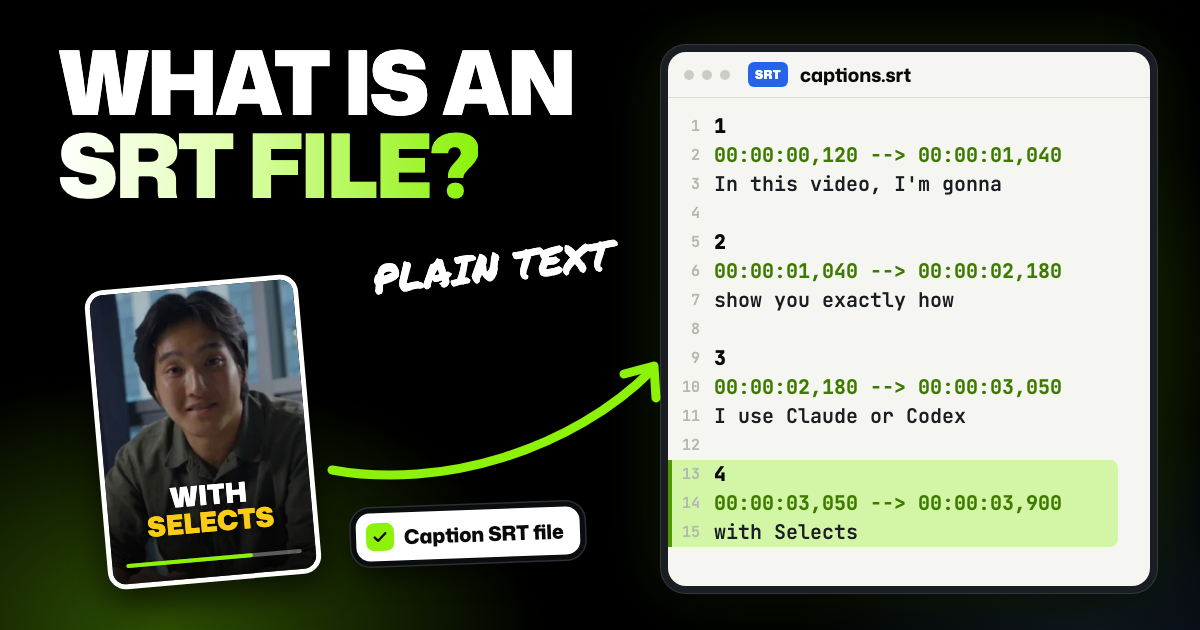
TLDR: An SRT file is a plain-text subtitle file: numbered captions, each with a start time, an end time and the words to show. Video players and platforms like YouTube read it to show captions viewers can turn on or off. Any text editor can open one.
Someone asked you for "the SRT," or you found a .srt file sitting next to a video. Here's what's inside an SRT file, how to open and fix one, and how to make one from your own video. You'll also see how SRT differs from VTT, the other common subtitle format.
- It matches one cut. The times fit one version of the video, so trimming the video throws every caption off.
- The format is strict. Times need a comma before the milliseconds, and a blank line ends each caption.
- Looks don't travel well. Players differ on bold, italic or color tags, and YouTube ignores them. Styled captions get burned in instead.
- Typing one by hand is slow. An AI video editor that transcribes your video can time every caption for you.
What is an SRT file?
SRT stands for SubRip Subtitle, and the file ends in .srt. The name comes from SubRip, a program that read subtitles and their timing off DVDs and saved them as text. There's no official spec: the Library of Congress format description calls it simple but not well standardized.
There's no picture or sound inside, just the words and when to show them. The player lays the text over your video while it plays.
SRT file format, with an example
Here's a short SRT file example. You can copy it into a text editor and save it as a .srt file:
1
00:00:01,000 --> 00:00:03,200
Welcome back to the channel.

2
00:00:03,400 --> 00:00:06,150
Today we're testing three
budget microphones.

3
00:00:06,500 --> 00:00:08,000
Let's start with the cheapest one.
Each caption has four parts, in this order:
- A number. Captions count up from 1.
- A timing line. The start time, an arrow made of two hyphens and a greater-than sign, then the end time.
- The text. One or more lines, usually one or two short ones, exactly as viewers will read them.
- A blank line. It tells the player this caption is done.
Times are written as hours, minutes, seconds and milliseconds: 00:00:03,400 means 3.4 seconds in. The comma before the milliseconds is part of the format, and so are the leading zeros. The YouTube example file uses the same layout.
What SRT files are used for
You'll run into SRT files in three places:
- Uploading captions. YouTube and many other platforms take an SRT file alongside the video, so viewers get a CC button.
- Delivering to a client or editor. The captions travel as their own file, and the video stays clean.
- Translation. Each language gets its own SRT file with the same timing, so one video can carry many languages.
What an SRT file can't do
An SRT file can't do much styling. It can carry a few tags borrowed from web pages (HTML) for bold, italic, underline and color. Whether they show depends on the player, and YouTube ignores style info in SRT files.
For a font, color or position that looks the same on every screen, make the captions part of the picture. Here's how to burn subtitles into a video and when that's the better choice.
How to open and edit an SRT file
An SRT file is plain text, so any basic text editor opens it. On Windows, right-click the file, choose Open with, and pick Notepad. On a Mac, right-click the file, choose Open With, and pick TextEdit.
Fix a typo like any other text, then save. When you save, keep three things true:
- Plain text only. Word processors like Microsoft Word can add hidden formatting that breaks the file. In TextEdit, if you see a formatting bar, choose Make Plain Text from the Format menu.
- UTF-8. If your editor asks for an encoding when you save, pick UTF-8. YouTube says the file must be in plain UTF-8.
- The .srt ending. Some editors quietly add .txt, so check the file name is "captions.srt" and not "captions.srt.txt".
A text editor is fine for fixing words. Timing is easier in an SRT editor with a video preview, where you can see and hear where each line starts. Selects, covered below, can work as one.
Common SRT mistakes
- A period instead of a comma in the times. 00:00:03.400 is VTT style. SRT calls for a comma, and stricter players may not read the line.
- A missing blank line. Without it, two captions can run together or one disappears.
- Garbled letters. Accents, Korean or Japanese turning into symbols usually means the file was saved in an older encoding. Open it in a text editor, check the letters look right there, then save it again as UTF-8.
- An end time before the start time. That caption gets no time on screen, so most players skip it.
- The wrong cut. An SRT file is timed to one version of the video. If you trim the start, every caption shows up late.
How to create an SRT file by hand
Writing one by hand works for a 30-second clip. For anything longer, the timing is the hard part.
- Open a new plain text file in Notepad or TextEdit.
- Play your video and note when each line starts and ends.
- Type each caption as in the example above: number, timing line, text, blank line.
- Save it as UTF-8 with a name ending in .srt.
How to make an SRT file from your video with Selects
Selects is an AI video editor for Windows 11 and Apple chip Macs. It transcribes your video, so you don't type a single word or time. Editing by hand and exporting cost nothing, and Selects never uploads the video file itself.
Step 1. Analyze your video
Drop your video on the Home screen to start a project. When Selects offers to analyze the video, click Analyze. It listens to every word and records exactly when it's said, in more than 90 languages.
Analysis is the step that uses credits: 360 per hour of video. New users get 1,800 free trial credits, about 5 hours of video, and after that credits come with a paid plan.
Next, right-click the video in the project panel (the list of your files) and choose Add to new timeline. This creates a draft: the edit you'll caption and export. Trim it first, since the SRT file is timed to this exact cut.
Step 2. Add captions
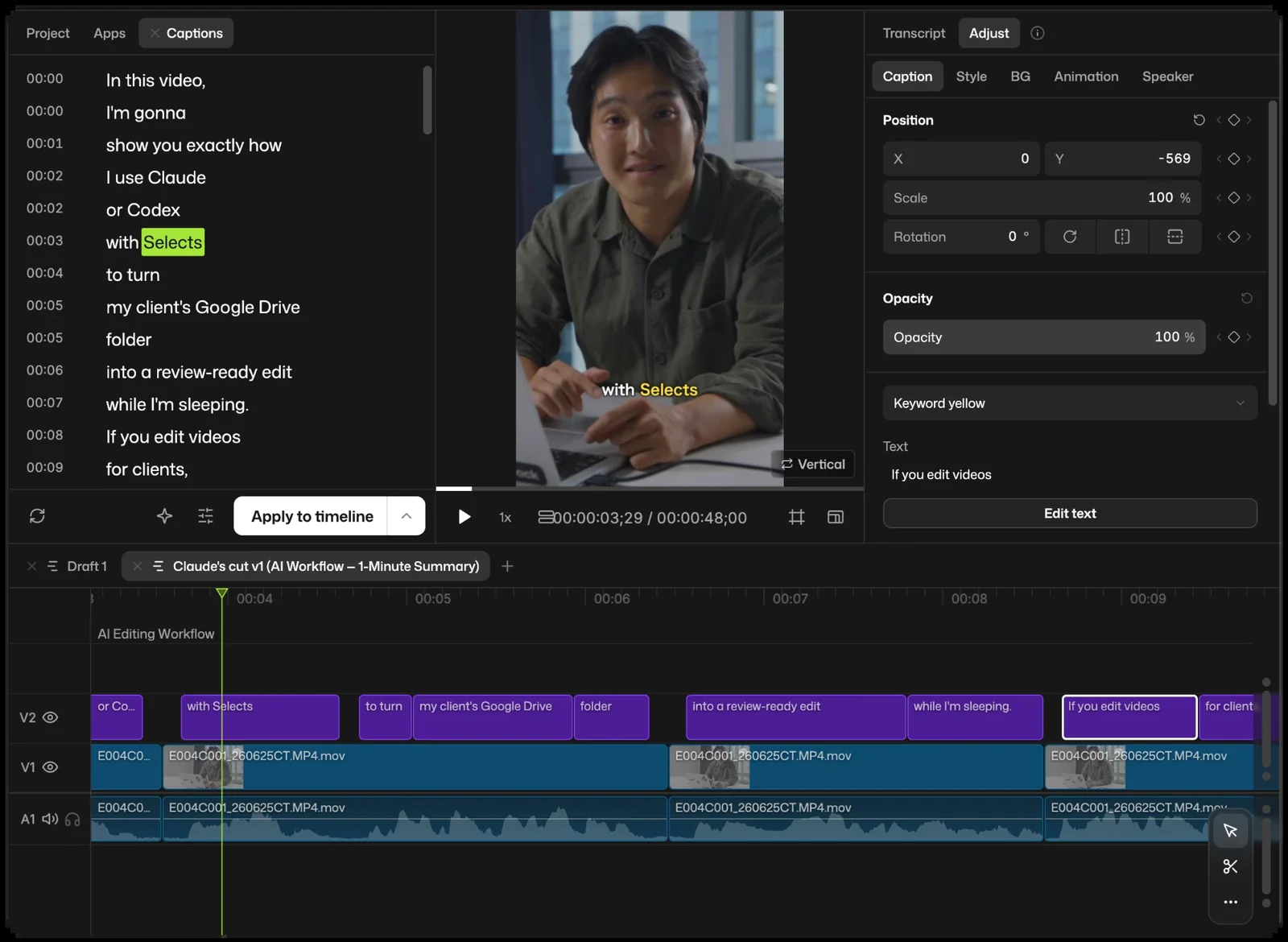
In the project panel, click the Apps tab, open Captions and click Add captions. Selects turns the transcript into a caption list. This step uses no credits, because the transcript already exists.
Read the list and double-click any word to fix it. Names and product terms are the usual misses.
Step 3. Set the line length
Caption settings, at the bottom of the app, decide how long each line runs. Max length per line starts at 7 words for a new list, and lines end where a phrase ends. Turn on Multi-line (up to 2 lines) to put two lines in each caption.
These settings shape your SRT file too. The export writes each caption exactly as the list shows it: same line breaks and letter case, with hidden words left out.
Step 4. Export the SRT file
Click Export at the top right, then Transcript. Choose Caption SRT file, pick where to save it, and click Export. Exporting doesn't use credits.
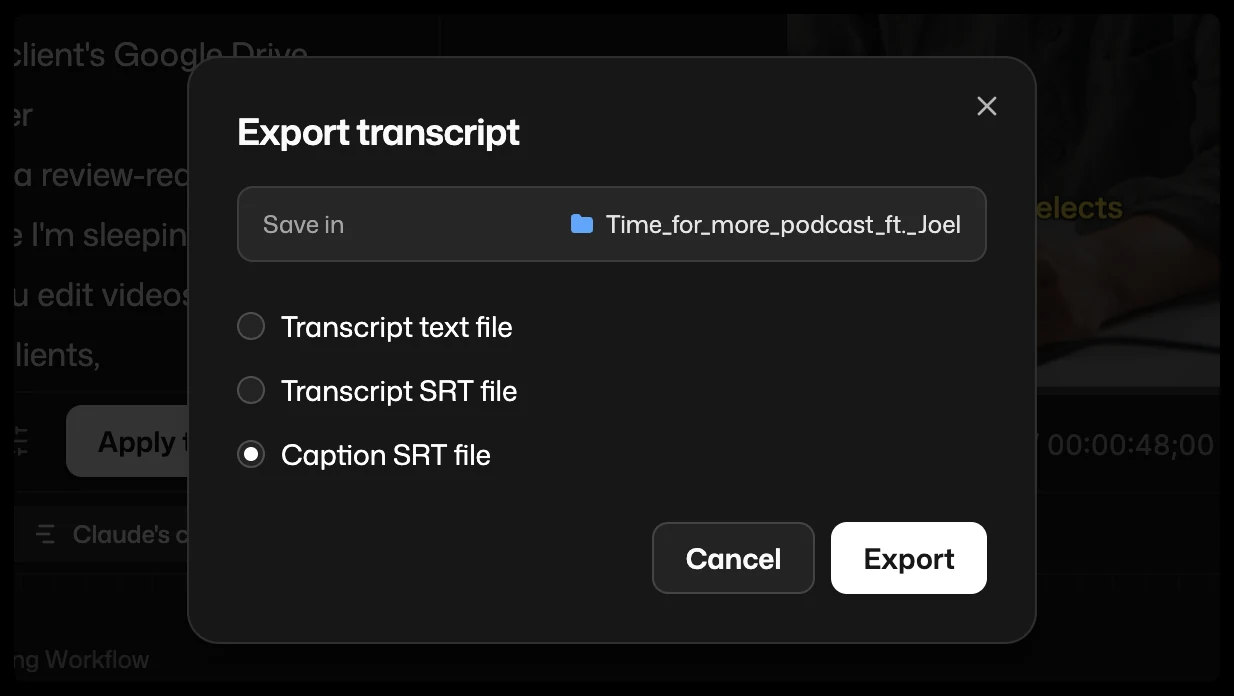
You'll also see Transcript SRT file, which works even before you add captions. It saves one caption per transcript line, with no line-length settings. That's handy as a rough transcript with times, but Caption SRT file reads better on screen.
For every caption setting, see the full guide to adding captions in Selects.
Import an SRT file into Selects to fix or style it
Already have an SRT file from a client or a transcription service? You can open it in Selects without analysis, so it uses no credits.
- Drag your video onto the Home screen and click Cancel when Selects offers to analyze it.
- Right-click the video in the project panel and choose Add to new timeline.
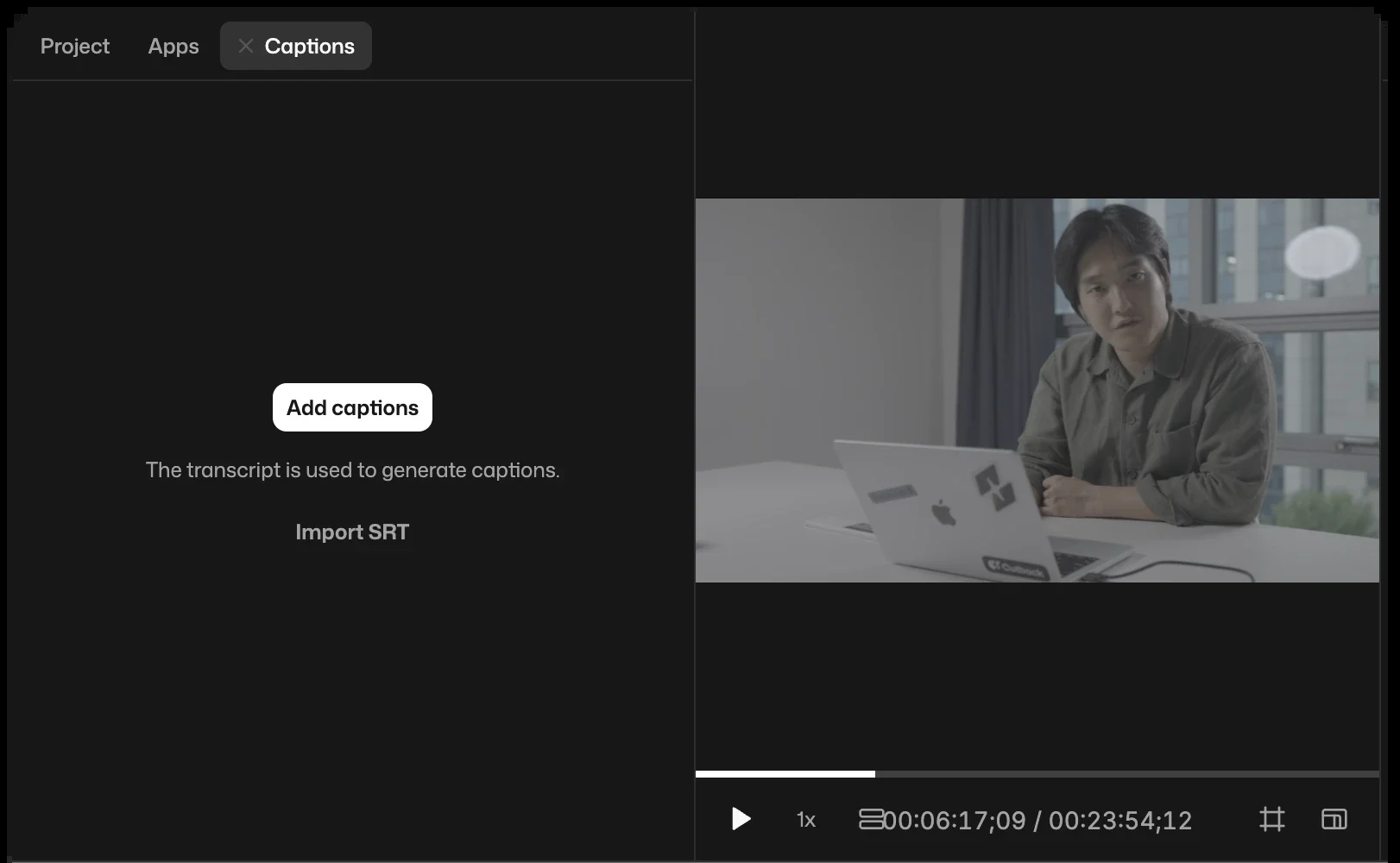
- Open the Captions app and click Import SRT, then choose your file.
Selects places each caption where the file times it and keeps the file's line breaks. It also reads many messy files, including periods in the times, missing blank lines and wrong caption numbers. Files saved as UTF-8 or UTF-16 open as they are. For an older encoding, Selects guesses from your app language, so if letters look garbled, save the file as UTF-8 first. Style tags in the file are dropped, since you style captions in Selects instead.
From there, fix words against the video and export a clean Caption SRT file. Or pick a caption look and burn the captions in, as the burn subtitles guide shows.
How to translate an SRT file
Start from captions you made in Selects or an SRT file you imported. To add a language, click Ask chat at the bottom of the Captions app, choose Translate captions, and name the language. When you export Caption SRT file, Selects saves one file per language, with the language in the file name.
Translation runs through chat, which uses credits on Selects' built-in models. You can also connect your own paid ChatGPT or Claude plan to run the chat. Here's how translated captions work in Selects.
SRT vs VTT: what's the difference?
VTT, short for WebVTT, is the other subtitle file you'll see. It grew out of SRT, according to the Library of Congress, and it adds options for the web.
| SRT (.srt) | VTT (.vtt) | |
|---|---|---|
| First line | The number 1, for the first caption | The word WEBVTT, which is required |
| Time format | 00:00:03,400 (comma before milliseconds) | 00:00:03.400 (period before milliseconds), and hours can be left out |
| Caption numbers | Part of the format, counting up from 1 | Optional |
| Styling | A few tags like bold and color, if the player supports them | Bold, italic and underline tags, plus colors and fonts through style blocks |
| Position on screen | No standard setting, and YouTube reads only basic SRT | Line, position and alignment settings for each caption |
| Encoding | No set standard, so UTF-8 is the safe choice | Must be UTF-8 |
| Where you'll use it | Uploads to YouTube and other platforms, delivery to editors | Web video players, and YouTube as an advanced format |
If a platform takes both, SRT is the simpler file to make and check. Pick VTT when captions need a set spot on screen and the player supports it.
To turn a basic SRT file into VTT by hand:
- Add a first line that says WEBVTT, then a blank line.
- In every timing line, change the comma before the milliseconds to a period. Leave commas in the caption text alone.
- Save it as UTF-8 with a name ending in .vtt.
The caption numbers can stay, since VTT treats them as optional labels.
How to upload an SRT file to YouTube
In YouTube Studio, open Subtitles, pick the video, and add a language. Then click Add under Subtitles, choose Upload file, pick With timing and click Continue. Select your SRT file and click Save, as YouTube's help page on adding subtitles shows.
FAQs
Is an SRT file a video?
No. An SRT file has no picture or sound, only caption text and times. That's why it's so small, and why it needs a video to play alongside.
Can I convert a video to SRT?
Yes: a transcription tool listens to the speech and writes each line with its timing. In Selects, analysis makes the transcript (it uses credits). Export a Transcript SRT file right away, or add captions first for a Caption SRT file.
Why do my SRT captions show weird characters?
The file was most likely saved in an older encoding, not UTF-8. It shows up most with accents and non-English text. Open the file in a text editor, check the letters look right, save it again as UTF-8, and upload it again.
Can an SRT file have colors or fonts?
Only a little. SRT files can carry a few tags for bold, italic, underline and color, but support depends on the player, and YouTube ignores them. For a set look, style the captions in a video editor and burn them into the picture.