How to Sync Audio and Video (and the Best PluralEyes Alternatives)
How to sync audio and video by waveform or timecode, what replaced PluralEyes, where sync tools fail, and two real multi-camera shoots synced in minutes.

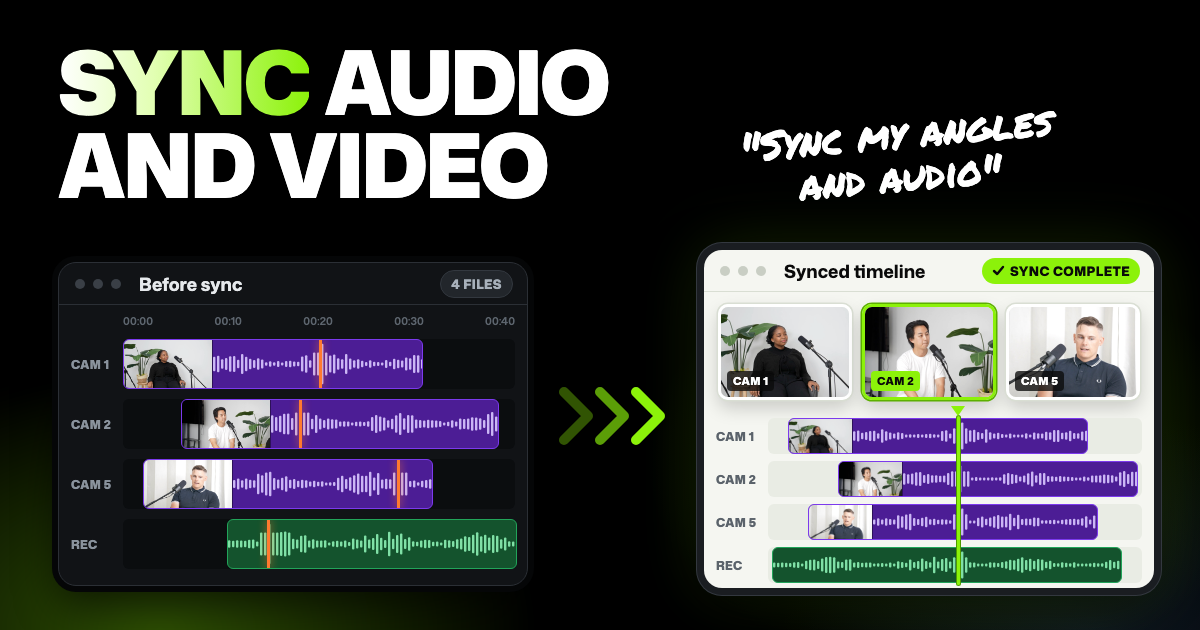
TLDR: To sync audio and video, record the same sound on every camera and recorder, then let a tool match the sound waves or timecode. PluralEyes is no longer developed, and the sync built into Premiere, Resolve and Final Cut covers small shoots. Syncaila and Eddie AI cover special cases, and Selects syncs big, messy multi-camera shoots in minutes.
You filmed on more than one camera, or recorded sound on a separate mic, and now nothing lines up. Lining it up by hand means scrubbing for a clap on every clip. This guide shows how automatic sync works, where the usual tools break, and which one fits your shoot.
To follow along, you need footage where every camera also recorded some sound.
We make Selects, one of the tools below.
- Small shoot, two to four cameras, clean sound: the sync already in your editing app is enough.
- A long event day with cameras starting and stopping: Syncaila is built for it.
- A camera with no usable sound: Eddie AI can sync by picture.
- Many cameras, many files, or no timecode: Selects sorts and syncs the whole drive at once.
How audio and video sync works
Every camera hears the same room. Sync software compares those sounds and slides each file until the sound waves line up. This is called waveform sync.
Timecode is the other way. Some cameras and recorders write a running clock into each file. If every device shares the same clock, the files line up by time instead of sound.
A slate (the clapboard filmed at the start) or a hand clap helps both. It gives every camera one sharp sound and one visible moment to match.
What happened to PluralEyes
PluralEyes was the go-to sync app for years. Maxon announced on January 31, 2023 that it was entering "limited maintenance mode." That meant no new features. Support and critical fixes ended on February 1, 2024.
Maxon now lists it as part of Red Giant, its bundle of video tools. Users on Adobe's forums report it stopped working after updates, though some say the last version still runs for them. Maxon's own FAQ points people to the waveform sync built into their editing app.
Where sync tools struggle
Automatic sync is fast when the sound is clean and the cameras roll nonstop. Real shoots break it in a few common ways.
| Problem | What users and tests report |
|---|---|
| Cameras that start and stop | In a test on a full day of documentary footage, PluralEyes missed a camera's start and stop points. Premiere users report that each restart can land on its own track. Labeling angles by hand first sometimes helps. |
| Partial syncs on long projects | Premiere users report sync that only works partially, and one says it couldn't handle a feature-length documentary. On November 2, 2026, an Adobe community manager said Adobe is investigating these sync issues. |
| A messy result with many clips | In the same documentary test, Resolve built 49 video layers and was far less accurate than PluralEyes or Syncaila. The tester couldn't tell whether Final Cut's result was in sync at all. He adds that editing apps expect smaller, organized batches, not a full day at once. |
| Waiting while it works | Apple's own guide says audio sync can take a long time, and Final Cut can't be used for editing meanwhile. |
| Silence and noise | Waveform sync has nothing to match in silence, and loud background noise hides the shared sound. This affects every waveform tool, Selects included. |
| Drift on long recordings | Each device keeps its own clock, so files can slowly slide apart. One wedding editor reports a recorder drifting 7 or 8 frames after 30 to 40 minutes. A sync that's right at the start can be off at the end. |
| Timecode tools | Tentacle Sync Studio syncs by timecode, so footage without matching timecode needs another method. |
The takeaway: test any tool on your worst shoot, not your cleanest one.
Which tool fits your shoot
| Your shoot | Best fit | Why |
|---|---|---|
| 2 to 4 cameras with clear sound, edited in Premiere | Premiere's built-in sync | Already paid for, no extra app |
| Edited in DaVinci Resolve | Resolve's built-in sync | Syncs by sound or timecode. Studio also switches angles by speaker |
| Edited in Final Cut Pro | Final Cut's multicam clip | Syncs every angle by sound when you build the clip |
| A wedding or event day, cameras starting and stopping | Syncaila | Built for long, messy days, and keeps clips in time order |
| One camera recorded no usable sound and no timecode | Eddie AI | Syncs by what the cameras see: flashes, motion and cuts |
| Many cameras and recorders, hours of footage, no timecode | Selects | Sorts the drive into synced timelines in minutes, then can switch angles |
The best PluralEyes alternatives, compared
Premiere Pro
- Good at: syncing without an extra app. Its multi-camera sequence lines up angles by sound, timecode or markers. Merge Clips joins one camera to a separate audio file.
- Bad at: long, messy projects. Users report partial syncs, and Adobe says it's investigating. It also doesn't switch angles for you: Adobe's multicam guide covers switching by hand only.
- Price: included with your Premiere subscription. See Adobe's Premiere plans.
- Best for: Premiere editors with a few cameras and clear sound.
DaVinci Resolve
- Good at: syncing multicam footage by sound, timecode or in and out points. Resolve 20 added SmartSwitch, which cuts between angles by who is talking, using the audio and lip movement.
- Bad at: a full day of clips at once. In a 2023 test it stacked 49 layers and was far less accurate than dedicated sync apps. SmartSwitch only works in Resolve Studio, the paid version.
- Price: Resolve is free. Studio is a one-time $295, on sale for $236 on Blackmagic's Studio page in late October 2026.
- Best for: anyone already editing in Resolve.
Final Cut Pro
- Good at: building a multicam clip that syncs every angle in one go. It can also line angles up by timecode or by when each camera recorded.
- Bad at: Apple's multicam guide warns that some recordings don't suit audio sync. A long sync can also hold up your editing until it ends.
- Price: $299.99 one-time, or inside Apple Creator Studio at $12.99 a month or $129 a year. See Apple's Final Cut Pro page.
- Best for: Mac editors already in Final Cut.
Syncaila
- Good at: long event days. Its site says it syncs a full day of shooting at once, from many cameras and recorders. It keeps clips in time order, even clips with no sound, and offers other sync options when one looks off.
- Bad at: it's a round trip. You save a project file from your editor, sync it in Syncaila, then open the result back in your editor. In the 2023 test it was also slower than PluralEyes, though it caught camera restarts PluralEyes missed. Choosing angles stays with you.
- Price: free for up to 20 clips on 2 tracks, plus a 20-day full trial. Lifetime licenses are $249 for all tracks or $125 for 3 tracks, and a 6-month license is $42. No refunds, so try it first. See Syncaila's licenses.
- Best for: wedding and event editors on Premiere, Final Cut, Resolve, Media Composer, Vegas or EDIUS.
Eddie AI
- Good at: syncing a camera with no usable sound. Its picture sync matches motion, flashes, light changes and cuts. It also syncs by sound as footage comes in.
- Bad at: every step costs credits. Picture sync charges for each minute it checks, even if you then discard the result.
- Price: 500 free credits to start, then packs from $10 for 1,000 credits. See Eddie's pricing page.
- Best for: shoots where one camera's sound is missing or useless.
Selects
- Good at: big, messy shoots. Selects syncs 10 or more cameras plus separate lav (clip-on), boom and wireless mics, by sound or timecode. When the timecodes don't line up, it syncs by sound, and chat can also match the speech in your transcripts. Ask in chat and it finds the files shot together and builds one synced timeline per session. After sync, it can switch to whoever is talking. Finish the video in Selects, or hand it to Premiere, Final Cut, Resolve or Avid Media Composer.
- Bad at: it can't sync by picture, so a camera with no sound and no timecode gets placed by hand. Very noisy clips and short clips with no speech may need a manual check. It runs in the browser or as a desktop app for Apple Silicon Macs and Windows 11, with no phone version yet.
- Price: syncing and handing off need no analysis. Camera switching does, and analysis uses credits: free trial credits first, then a paid plan from $20 a month.
- Best for: almost any video you film yourself, from YouTube videos and interviews to video podcasts and event videos.
Two real shoots, synced in Selects
Clean demo footage proves little. So our team ran Selects on footage from two real productions.
| A panel show pilot | A street-filmed YouTube show | |
|---|---|---|
| Footage | 781 GB, about 290 files | About 35 hours, 250 clips |
| Cameras and audio | 3 studio cameras, a handheld, a panelist joining on video call recorded his video on his phone, a video call recording, a live switcher feed, a recorder with 54 audio tracks | 6 cameras plus an audio recorder |
| What made it messy | No timecode or slate, every device on its own clock, rehearsal and setup chatter mixed in | Filmed on the street, sound mostly from the camera mics, some short clips with no speech |
| Sync method | Sound waves | Sound waves |
| Analyzed before sync? | Yes, and the sync ran from a chat request | No. The sync ran without transcripts |
| Time to sync | 4 minutes 36 seconds: 115 files sorted into 7 synced timelines | 2 minutes |
| Result | The phone video and the video call recording synced with the studio cameras and the recorder | Every clip but one matched. That one likely failed because of background noise |
The production company behind the street show syncs each episode by hand. It takes them about 3 hours.
Two notes from that test. Short clips with no speech were placed by sound alone, so they need a manual check. And their slates helped.
Sync doesn't depend on analysis. The street-show sync ran before any transcript existed. A transcript still helps, as a second check that the sync is right.
How to sync audio and video in Selects
Step 1. Bring in your footage
Drag the folder with your camera and audio files into a Selects project. Keep everything from the shoot, even clips you think you won't use, so no angle goes missing.
Step 2. Group the files recorded together
For one session, select its camera and audio files in the Project panel, right-click them and choose Sync. Selects opens a synced timeline with each camera and mic on its own track.
For a whole drive, ask in chat instead. For example: "Find all the files that were shot together and create synced timelines for them." Selects sorts them by when they were recorded. Chat uses credits, or a paid ChatGPT or Claude plan you connect.
When your files are analyzed, chat also checks the transcripts. The same lines heard in two recordings put them in the same session and give their offset, even when the clocks or file names disagree. Transcripts come from analysis, which uses credits.
Step 3. Line them up
Open Sync tools on the synced timeline and run the sync step. If your files carry timecode, pick Audio waveform or Timecode under Sync method. If every clip lines up, the step gets a check mark.
When the cameras' timecodes can't be matched, Selects says "Timecode sync is unavailable for these clips. Select audio waveform." Choose Audio waveform, and the clips line up by sound instead.
Step 4. Check what Selects flags
Clips that didn't line up are listed for you. "Not synced" means the sound couldn't be matched. "Needs review" means Selects placed the clip from the transcript instead of the sound.
Jump to each one, nudge it a frame at a time or drag it into place, then mark it resolved. A sync that reports success can still be a frame off, so play a few spots, including the end.
Step 5. Hand it off, or switch cameras in Selects
If sync was all you needed, right-click the synced timeline's tab. Send it to Premiere, Final Cut Pro or DaVinci Resolve. Your angles and audio arrive lined up, with no analysis needed.
To switch angles, Selects first analyzes your footage so it knows who is talking. Analysis uses credits. New accounts get 1,800 free trial credits, then you need a paid plan. See what each plan includes.
Then ask in chat. For example: "Cut to whoever is talking, keep reaction shots, hold each shot at least five seconds, and go wide when the topic changes." The Help Center guide on syncing your files has every option. For the bigger picture, see how multicam sync and switching work in Selects.
Tips and common mistakes
- Keep every camera mic on. Even a bad one gives waveform sync something to match.
- Clap where every camera can see it. One sharp sound gives every tool an easy point to match. A picture-sync tool can see it too.
- Check the end, not just the start. Each camera keeps its own time. Over an hour, it can slide a few frames.
- Don't trust a sync you haven't played. Watch a few seconds at the start, middle and end of each timeline.
FAQs
Can I sync audio and video without timecode?
Yes. Waveform sync only needs the same sound on every camera and the recorder. The panel pilot above had no timecode or slate at all.
In Selects, choose Audio waveform when timecode is missing or doesn't line up. Once your files are analyzed, chat can also match shared speech in the transcripts, and analysis uses credits.
Can I sync in Resolve or Final Cut first and bring it into Selects?
Yes. Click the + button in the Project panel and choose Import synced timeline. Selects reads Premiere project files and the XML files that Premiere, Final Cut and Resolve export. It rebuilds your synced timelines without syncing again.
Does a three-camera shoot use credits once or per camera?
Per camera, but only if you analyze it. Analysis counts every file's full length, so three one-hour cameras count as three hours, or 1,080 credits. A separate audio file adds 60 credits per hour. Syncing and handing off need no analysis.