Video Editing Terms: A Plain-English Glossary for Beginners
Video editing terms explained in plain English: B-roll, jump cuts, J-cuts, rough cuts, codecs, LUTs and AI editing words, grouped by job.

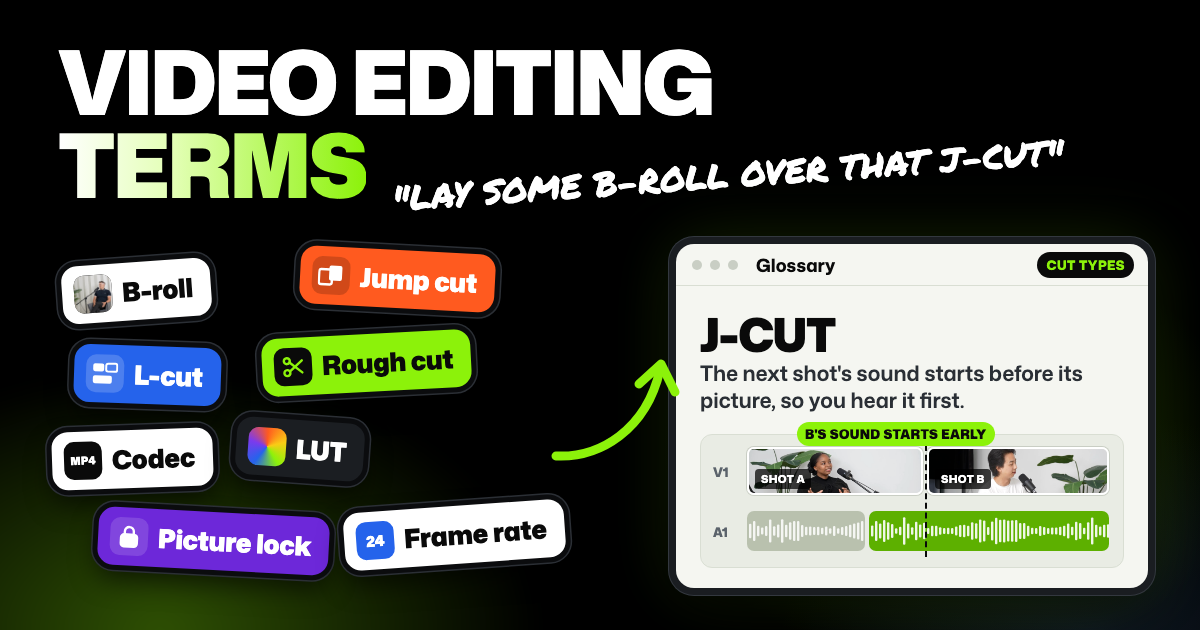
TLDR: Video editing terms describe what you film, how you cut it, how it sounds and looks, and how you save it. The ones you'll hear most are B-roll, jump cut, J-cut, L-cut, rough cut, frame rate and codec. This glossary defines each in a sentence or two, grouped by job, with newer AI editing terms at the end.
Tutorials throw around video editing keywords as if you learned them in school, like "lay some B-roll over that J-cut." This video editing glossary explains each term in plain English, so you can follow along and talk with other editors without guessing.
- Learn the cut types first. Jump cuts, J-cuts and L-cuts show up in almost every edit, so they're the quickest win.
- Edit stages have names. Assembly cut, rough cut, fine cut and picture lock each tell you what can still change.
- Correction comes before grading. Fix the color so shots match, then give the whole video a look.
- AI terms are new names for old jobs. Transcript-based editing is still cutting video. You just do it by deleting words.
Shooting and footage terms
- Footage. Everything you recorded. Raw footage means the untouched files straight from the camera.
- A-roll. Your main footage: the person talking to camera, the interview or the presenter. It carries the story and most of the sound.
- B-roll. Extra footage that plays over the A-roll, like shots of a product while the host talks about it. It shows what someone is describing and can cover cuts in the A-roll.
- Take. One recording of a shot or a line. A retake is another try at it.
- Coverage. All the angles and shots you filmed of one scene. More coverage gives you more choices in the edit.
- Frame rate (fps). How many still images, called frames, play each second. 24 fps gives the classic film look, 30 is common online, and 60 makes motion smoother.
- Resolution. How many pixels make up each frame, like 1080p (1920 by 1080) or 4K (usually 3840 by 2160). Higher resolution means a sharper picture and bigger files.
- Aspect ratio. The shape of the frame. 16:9 is wide, for YouTube; 9:16 is tall, for phones; 1:1 is square.
- Timecode. A clock recorded into a video file as hours, minutes, seconds and frames, like 01:02:03:04. It lets you find an exact frame and line up cameras that recorded the same clock.
- Multicam. A shoot with two or more cameras recording the same moment, like a podcast with one camera per person. In the edit you switch between the angles. Selects, the AI video editor we make, syncs 10 or more cameras by sound or timecode. Then you ask chat to switch between them.
Cutting and timeline terms
- NLE (non-linear editor). Editing software that lets you change any part of a video in any order. Premiere Pro, DaVinci Resolve and Final Cut Pro are NLEs.
- Timeline. The strip at the bottom of the editor where your clips sit in order, left to right. Video tracks sit above audio tracks.
- Track. One row on the timeline. Put a B-roll clip on the track above your interview, and it plays on top.
- Clip. One piece of footage on the timeline. You can split one long recording into many clips.
- Playhead. The vertical line on the timeline that marks the frame you're looking at.
- Sequence. A timeline with its own settings, like frame rate and frame size. One project can hold several, such as a long version and a short one.
- Trim. Moving the start or end of a clip to make it shorter or longer.
- Ripple delete. Removing a clip and closing the gap it leaves, so everything after it slides over.
- Stringout. A timeline with every usable clip laid end to end, before any real cutting. Here's more on stringouts and selects.
- Selects. The best moments pulled from your footage, ready to build the edit from. It's also the name of our app.
- Paper cut. A written plan of the edit, usually made from transcripts, listing which lines stay and in what order.
- Assembly cut. The first full version: all the usable footage in story order, with little trimming. It shows whether the story works at all.
- Rough cut. The first version with story decisions made. Repeats and tangents come out and the order takes shape, but timing is still loose.
- Fine cut. The rough cut polished: cut points tightened, B-roll placed and timing adjusted shot by shot.
- Picture lock. The point where the edit stops changing. Color, the sound mix and graphics are then finished on a fixed timeline.
A common order is stringout, selects, assembly cut, rough cut, fine cut, then picture lock. Some editors pull selects before the stringout, and small projects often skip a stage. For each stage in order, see assembly cut vs rough cut.
Cut types and transitions
Most edits use straight cuts. The others come in where they help.
| Cut | What it looks like | When to use it |
|---|---|---|
| Straight cut (hard cut) | One shot ends and the next starts instantly | Most cuts in any video |
| Jump cut | The same shot with a moment removed, so the person seems to jump | Cutting pauses from talking-head videos, or adding energy |
| Match cut | A cut between two shots that share a shape, movement or action | Linking two scenes or ideas smoothly |
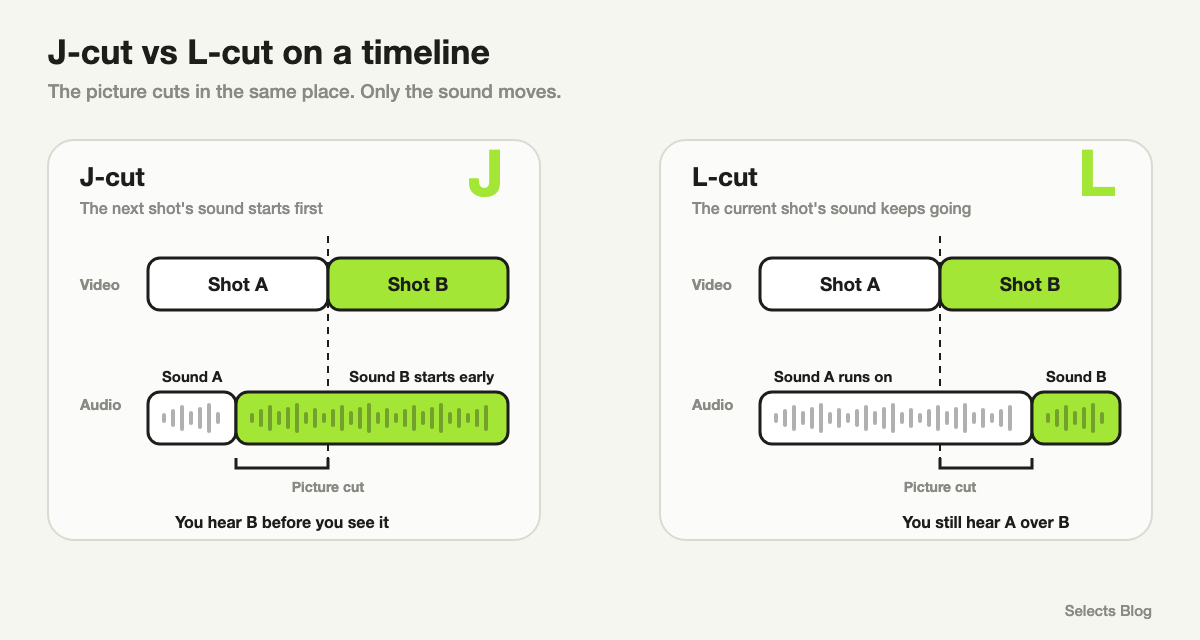
| J-cut | The next shot's sound starts before its picture | Leading into a new speaker or scene naturally |
| L-cut | The current shot's sound keeps playing over the next picture | Showing a reaction while someone finishes talking |
| Cutaway (cutaway shot) | A short shot of something else, then back to the main shot | Hiding a cut, or showing what someone is talking about |
| Cross-cut | Switching back and forth between two scenes happening at once | Building tension or comparing two stories |
J-cuts and L-cuts get their names from the shape the audio and video make on the timeline. In a J-cut, the audio reaches back under the previous shot. In an L-cut, it trails under the next one.
- Transition. Any effect that moves from one shot to the next, other than a straight cut.
- Cross dissolve. One shot fades out while the next fades in on top of it. Editors often use it to show time passing.
- Fade. A shot fading in from black or out to black. It's common at the very start and end of a video.
Audio terms
- Sync. Lining up separate recordings of the same moment, like a camera and a separate mic, so the sound matches the lips. Editors sync by matching the sound, by timecode, or by lining up a clap by hand.
- Waveform. The picture of sound on an audio track. Tall parts are loud and flat parts are silent, which helps you spot where people speak.
- Dual-system sound. Recording audio on a separate recorder or mic, then syncing it with the camera footage in the edit.
- Audio levels. How loud each track is, measured in decibels (dB). Clipping is when the sound gets so loud it distorts.
- Room tone. A few seconds of a quiet room recorded on set. Editors use it to fill gaps, so a cut doesn't sound like the audio dropped out.
- Ducking. Turning the music down while someone speaks, so the voice stays clear.
- Mix. Balancing dialogue, music and sound effects so every part can be heard. The final mix usually happens after picture lock.
Color and finishing terms
- Color correction. Fixing color so shots look natural and match each other. It covers brightness, contrast and white balance.
- Color grading. Giving the corrected footage a look or mood, like warm and golden or cool and blue. Correct first, then grade.
- White balance. The setting that decides what counts as pure white, so skin tones don't look orange or blue.
- Log footage. Flat, grayish footage some cameras record to keep more detail for grading. It needs color work before it looks normal.
- LUT (lookup table). A preset file that converts one set of colors into another. People use LUTs to turn log footage into normal color, or to apply a ready-made look.
- Keyframe. A marker that sets a value at one moment, like a clip's size or position. Two keyframes with different values make the change animate between them.
- Lower third. A title in the lower part of the screen, usually a person's name and role.
- Captions and subtitles. Captions show the spoken words, often with sounds, for people watching without audio. Subtitles usually translate the dialogue into another language.
Exporting and file format terms
- Render. The computer working out the final frames of your edit, effects included. Some editors render a preview so playback runs smoothly.
- Export. Saving the finished edit as a video file you can share or upload.
- Codec. The method a file uses to shrink video so it fits on your drive, and to unpack it for playback. H.264 and H.265 make small files for sharing, while ProRes makes big files that are easier to edit.
- Container. The file type, like MP4 or MOV, that holds the video, audio and details together. One container can hold different codecs.
- Bitrate. How much data each second of video uses. A higher bitrate usually means better quality and a bigger file.
- Proxy. A small, low-resolution copy of a large video file, so editing runs smoothly on a slower computer. You switch back to the originals before the final export.
- XML and EDL. Files that carry your edit decisions from one editing app to another, without the video itself.
AI video editing terms
These are newer words you'll see in AI video editors.
- Transcript-based editing. Editing by deleting words in a transcript, while the video cuts to match. In Selects, cut words stay grayed out in the transcript, so you can bring them back.
- Speaker detection. Software working out who is speaking at each moment. It labels the transcript and tells automatic camera switching which angle to show.
- Camera switching. Software cutting between multicam angles for you, usually to whoever is talking.
- Filler word removal. Cutting ums, uhs and similar words automatically.
- Silence removal. Cutting pauses automatically, usually above a length you choose.
- Auto reframe. Turning a wide video into a tall or square one while keeping the person in frame.
- Scene search. Finding a shot by describing what's in it, like "close-up of hands on a keyboard."
- Chat editing. Telling an AI video editor what to change in plain words, like "cut the intro and add captions." Some people call this vibe editing.
- Analysis. In Selects, the step where the app watches and listens to your footage before you edit. It times every word, works out who is speaking, splits the talk into topics and reads what's on screen.
In my experience, camera switching is the biggest pain in a podcast edit, even with clean audio. By hand, a one-hour episode takes about two hours of scrubbing, cutting and rewatching. Switching only to whoever is speaking misses laughter and reactions, but Selects' analysis reads the picture too, so important ones aren't missed.
Analysis uses credits, the units Selects counts AI work in. New users get 1,800 free trial credits, enough to analyze about 5 hours of video, and after that it takes a paid plan. The editor itself and exporting don't use credits.
For what analysis gives you, step by step, see how AI analysis works in Selects.
FAQs
Are film editing terms different from video editing terms?
Mostly no. Most video editing terms started in film editing and kept their names, like cut, rough cut and picture lock. A few film words, like dailies (the footage shot each day), still come up on bigger productions.
What are the stages of video editing?
Organize your footage, build a stringout and selects, then make the assembly, rough and fine cuts. After picture lock come color, the sound mix, graphics and export.
What is the professional term for a video editor?
Most people just say editor. On bigger teams, an assistant editor organizes and syncs footage, a colorist grades the color, and a sound mixer handles the final mix.