Free Premiere Pro Alternative: 7 Editors That Can Do Real Work
Need a free Premiere Pro alternative? Compare DaVinci Resolve, CapCut, Shotcut, Kdenlive, Clipchamp, iMovie and Selects on price, limits and fit.

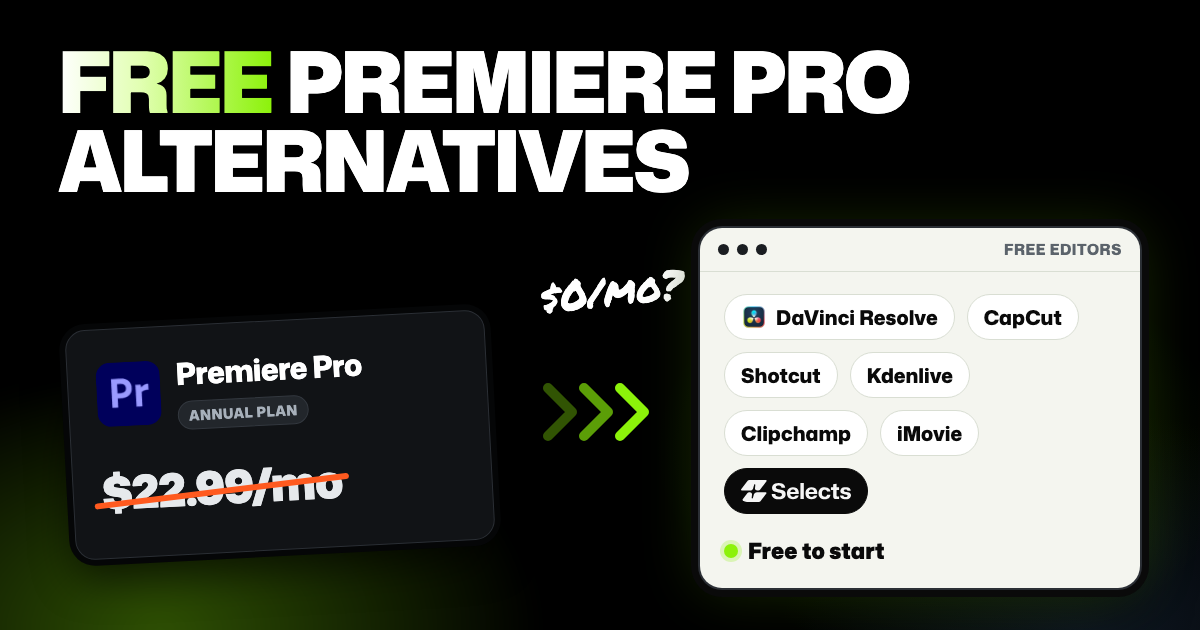
TLDR: The closest free Premiere Pro alternative is the free version of DaVinci Resolve, a full professional editor for Mac, Windows and Linux. Shotcut and Kdenlive are free and open source. CapCut, Clipchamp and iMovie suit quick edits, and Selects is a full free editor with optional AI that runs on credits. None of them opens a Premiere project file intact, though DaVinci Resolve can import your basic cuts from an XML file Premiere exports.
You don't want to keep paying Adobe every month, but you still need an editor that can finish real videos. Maybe you're starting a YouTube channel, or you've edited in Premiere for years and the subscription no longer makes sense. Here are seven free editors that can replace it, what each costs if you outgrow the free version, and what you give up by leaving.
- Start with what you edit, not with features. A weekly talking-head video and a short film need different tools.
- Check your computer first. iMovie needs Apple devices, and that rules it out fast on Windows.
- Finish open Premiere projects before you cancel. Without a subscription, you can't reopen them in Premiere.
We make Selects, one of the tools below. Prices come from each tool's own pages, checked November 10, 2026, in US dollars.
What Premiere Pro costs today
Adobe's Premiere plans page lists Premiere Pro from $22.99 a month on an annual plan, billed monthly. Adobe's FAQ says that price is for new subscribers' first year, so year one comes to $275.88 ($22.99 x 12). There's no free desktop version, only a 7-day free trial.
If that's more than your videos earn, a free editor makes sense. The question is which free editor can still do the work you do.
The free Premiere Pro alternatives at a glance
| Tool | Free version | Paid upgrade | Runs on | Main gap |
|---|---|---|---|---|
| DaVinci Resolve | Full editor, up to Ultra HD (3840 x 2160) at 60 fps | Studio, $295 once (on sale for $236 when we checked) | Mac, Windows, Linux | AI tools and 10-bit formats need Studio |
| CapCut | Basic editing, free filters, transitions and text | Pro, $19.99 a month or $179.99 a year | Windows, Mac, web, phone | Motion tracking and other advanced AI tools need Pro |
| Shotcut | Everything, free and open source | None | Windows, Mac, Linux | No AI help with the cut |
| Kdenlive | Everything, free and open source | None | Windows, Mac, Linux | No AI help with the cut |
| Clipchamp | Export up to 1080p, no watermark | Microsoft 365 Personal, $9.99 a month or $99.99 a year, adds 4K export | Windows app, web browser | 4K needs Microsoft 365 |
| iMovie | Everything, free | None | Mac, iPhone, iPad | Apple devices only |
| Selects | Full timeline editor, color controls and export up to 4K, no watermark | Starter, $20 a month, or $16 a month billed yearly, for AI credits | Windows 11, Apple Silicon Mac, web browser | Color and effects not as deep as Resolve; AI steps use credits |
If you want Premiere-level control, DaVinci Resolve is the closest of these Adobe Premiere Pro alternatives. If your videos are short and simple, the lighter tools are quicker to learn.
How to choose a free Premiere Pro alternative
Answer four questions in order. Each one cuts the list down.
What do you edit?
For short social videos, CapCut and Clipchamp are built around templates and quick exports. For long videos like tutorials, interviews or podcasts, you want a full timeline (the strip where your clips sit in order) with several tracks. DaVinci Resolve, Shotcut, Kdenlive and Selects all have one.
What computer do you have?
iMovie runs only on Apple devices. Selects' desktop app needs Windows 11 or a Mac with Apple Silicon (M1 or later), and Selects also runs in a browser. Everything else on the list runs on both Windows and Mac, though Clipchamp on a Mac works only in the browser.
Do you need color and effects depth?
If you grade color by hand or build layered effects, only DaVinci Resolve matches Premiere's depth for free. Resolve is known for its color tools, and its free version includes them. The other editors cover basic color fixes, not a full grading setup.
Do you want AI help?
Most free editors leave every cut to you. In CapCut and DaVinci Resolve, the AI tools sit in the paid versions. Selects works as a free manual editor on its own, and its AI is there when you want it, using credits.
DaVinci Resolve
- Good at: being a complete professional editor for free. It covers editing, color and audio in one app, on Mac, Windows and Linux. The free version works with virtually all 8-bit formats up to 60 fps in Ultra HD, with no subscription.
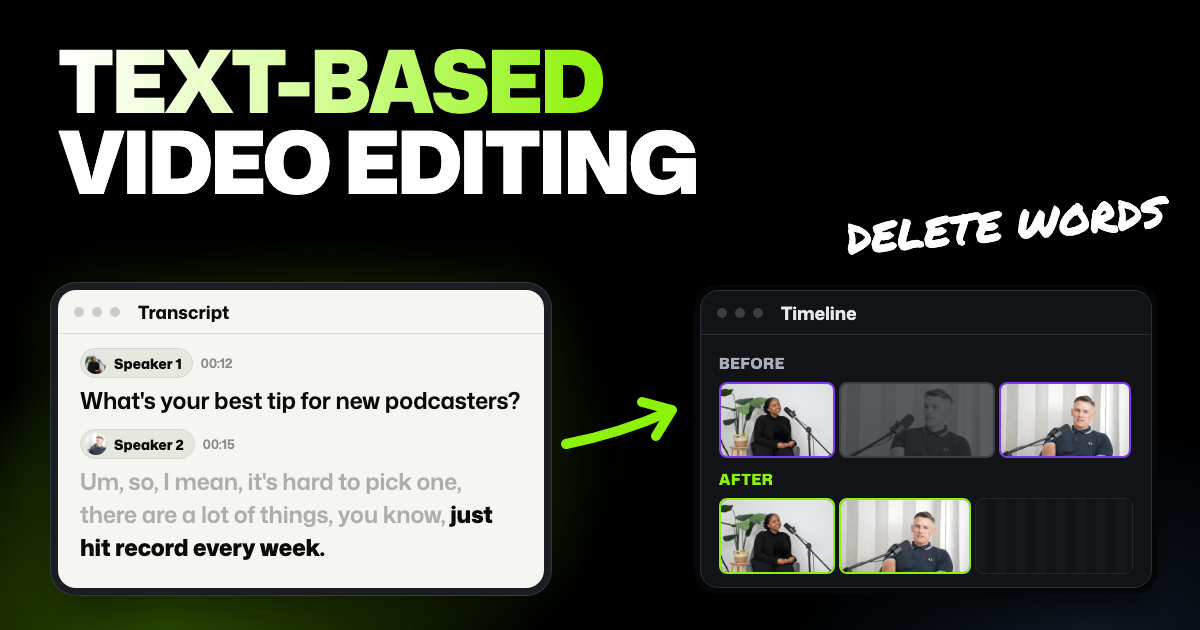
- Bad at: AI help and being quick to learn. Its AI features (the DaVinci Neural Engine) and text-based editing need the paid Studio version. There are a lot of pages and panels, so expect a learning curve even if you know Premiere. In my experience it's a lot for a beginner. But there are a lot of YouTube tutorials to help you learn.
- Price: free, or Studio for $295 once (on sale for $236 when we checked). See DaVinci Resolve Studio pricing.
- Best for: editors leaving Premiere who want the same depth, especially professional-grade color grading, without a monthly bill. Free to use, so it can be worth the time to learn.
CapCut
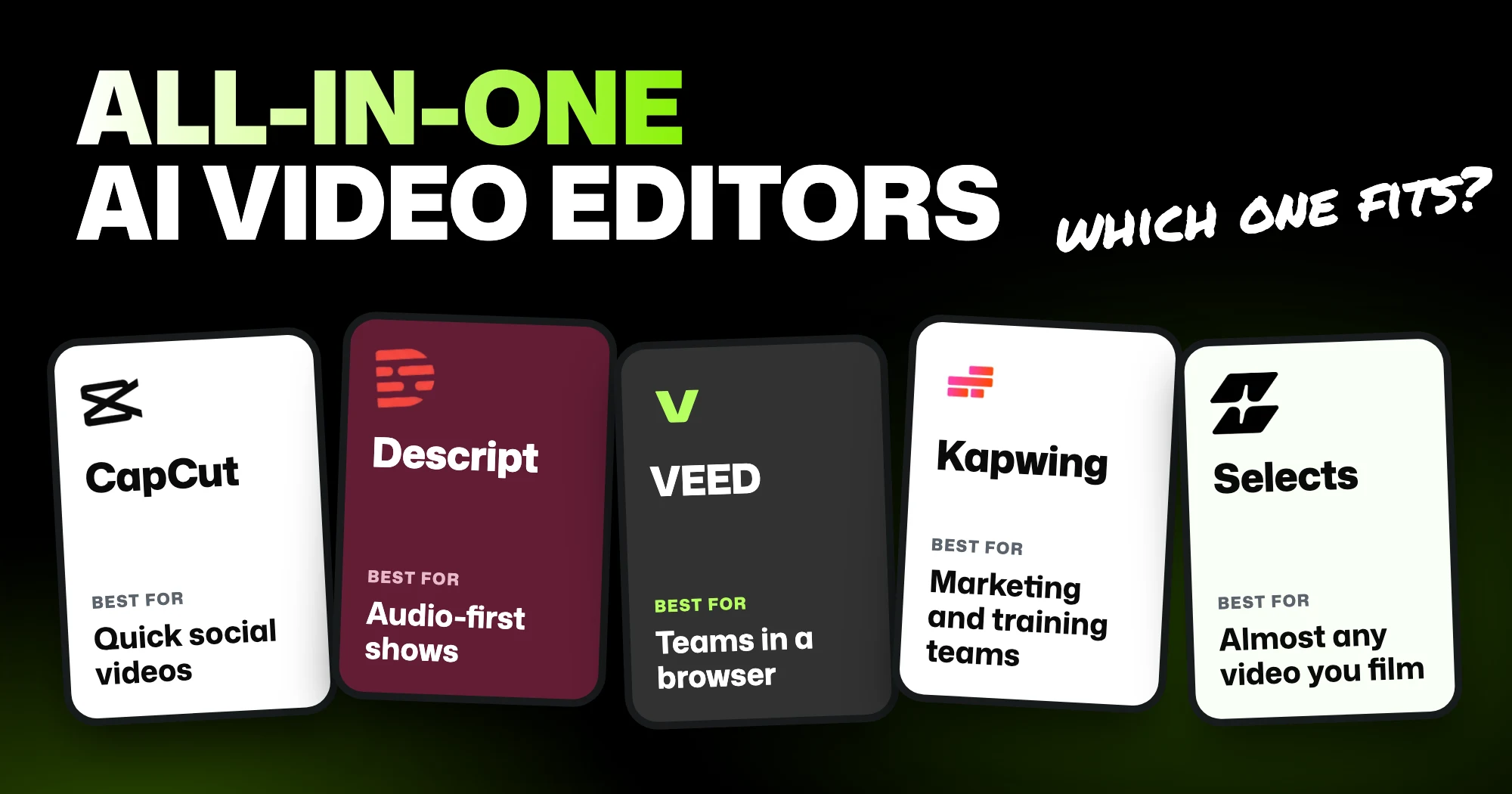
- Good at: quick social videos. It has templates, free filters, transitions, text and stickers. It also runs on phones, the web and computers, so you can start on one and finish on another.
- Bad at: AI features on the free plan, and long scripted edits. CapCut lists motion tracking and other advanced AI tools as Pro features. Its pages disagree on auto captions: that article puts them on Pro, while its AI caption page offers free captions on CapCut Web.
- Price: free, or Pro at $19.99 a month or $179.99 a year. Prices vary by region. See CapCut's pricing.
- Best for: TikTok, Reels and Shorts made from templates, often on a phone.
Shotcut
- Good at: a full editor that's free and open source, on Windows, Mac and Linux. Its features list includes a multitrack timeline, proxy editing (lighter copies of your clips for smooth playback), keyframes and color wheels. It can also turn speech into subtitle text.
- Bad at: helping you cut. There's no AI to make a first cut or find moments, so every edit is made by hand.
- Price: free. See Shotcut's download page.
- Best for: people on Linux or an older computer who want a free editor with no account to create.
Kdenlive
- Good at: a free and open source editor with hundreds of effects, keyframes and proxies, on Linux, Windows and Mac. It also makes subtitles with automatic transcription. It's updated often: version 26.08.3 came out November 7, 2026.
- Bad at: hand-holding. Like Shotcut, every cut is yours to make, and help comes from its manual and community, not a support team.
- Price: free. See Kdenlive's download page.
- Best for: YouTubers and hobbyists who want a full free editor and don't mind learning it.
Clipchamp
- Good at: simple edits with nothing to set up. It's Microsoft's editor, with a Windows app for Windows 10 and 11 and a browser version for Mac and Linux. Free exports go up to 1080p with no watermark.
- Bad at: 4K and bigger projects. 4K export, premium stock and the brand kit need a Microsoft 365 subscription. It's built for quick videos: Microsoft recommends keeping videos to 10 minutes or less for the best performance.
- Price: free, or included with Microsoft 365 Personal at $9.99 a month or $99.99 a year. See Microsoft 365 plans.
- Best for: Windows users making short videos for work, school or social media.
iMovie
- Good at: the easiest start on a Mac. It's free on Mac, iPhone and iPad, edits up to 4K and has 29 trailer templates.
- Bad at: anyone without Apple devices, and bigger edits. There's no Windows version and no AI features, and you'll hit limits on what you can do as your edits grow. Its App Store page asks for a recent macOS 26 release, so older Macs may not run the current version.
- Price: free. See iMovie on the Mac App Store.
- Best for: Mac beginners making family videos, school projects or simple YouTube videos.
I started editing on iMovie eight years ago, then moved to Final Cut Pro, then Premiere, then Selects. iMovie covers the basic editing features without overwhelming you, which makes it a good first editor to learn.
Selects
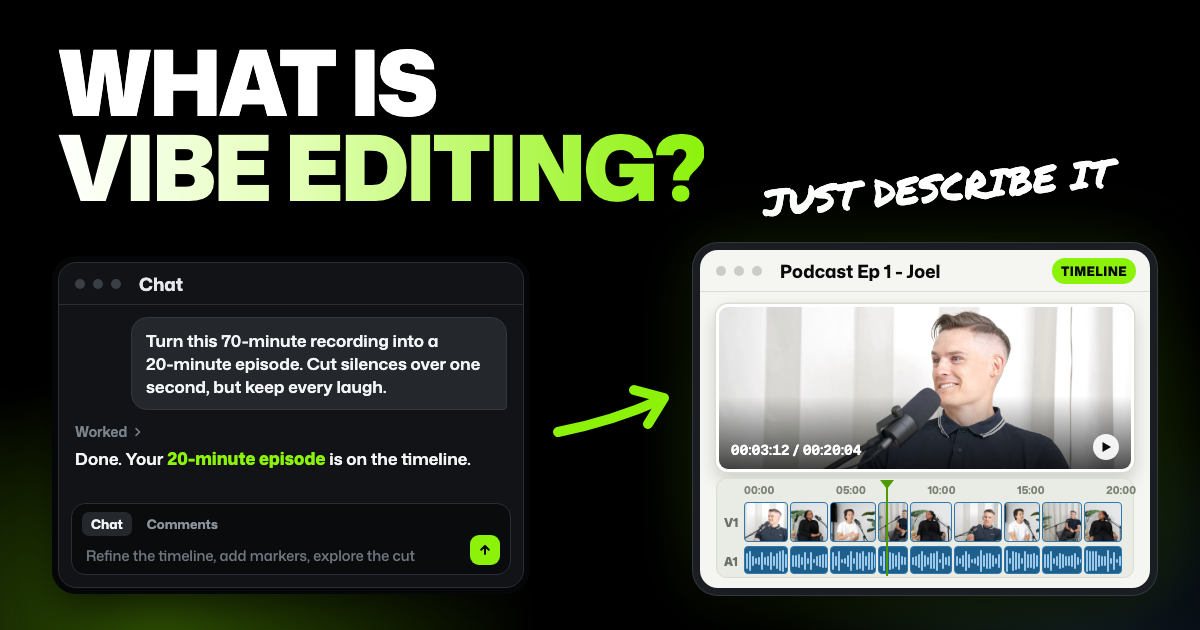
- Good at: being a full manual editor that's free to use, with AI when you want it. The free editor has a multi-track timeline, keyframes, color wheels, curves and HSL controls, and exports up to 4K with no watermark. When you want help, the AI assistant can do the fiddly work, like building graphics and animations, or show you how to do it yourself. It also watches and listens to your footage. That lets it cut retakes or build a rough cut (a first version of the edit) from a plain request.
- Bad at: the deepest color and effects work: DaVinci Resolve goes further for professional grading. The AI steps use credits once the free trial runs out, and there's no phone version yet.
- Price: the core editor and export are free. Analysis (Selects watching and listening to your footage), chat on Selects models and generated media use credits. New accounts get 1,800 free trial credits, about 5 hours of single-camera video, then plans start at $20 a month. See what each Selects plan includes.
- Best for: almost any video you film yourself: YouTube videos, vlogs, tutorials, courses, interviews, video podcasts, short clips and event videos.
Selects sits in the sweet spot between a professional editor like DaVinci Resolve and a simpler tool like iMovie. The interface is easy to learn, and help is built in. You can chat with our support team inside the app. The chat assistant also reads our Help Center, so you can learn a feature without leaving Selects.
Already pay for ChatGPT or Claude? Connect that plan in the desktop app, and chat runs on it instead of Selects credits. Analysis still uses Selects credits.
Two other free editors come up often. OpenShot is free and open source on Windows, Mac and Linux. Lightworks has a free plan that exports MP4 files up to 1080p.
What you lose when you leave Premiere Pro
Switching editors is easy for new videos. Old projects are the hard part.
Your Premiere projects stay in Premiere
Premiere saves projects as .prproj files, and none of the editors above opens one with your edit intact. To move a cut, Premiere can export a Final Cut Pro XML file or an EDL (edit decision list, a plain list of your cuts).
Adobe itself says only a few Premiere effects and features transfer through XML, and audio levels may not transfer accurately. EDLs are simpler still. Adobe says they work best with one video track, two stereo audio tracks and no nested sequences (sequences placed inside others).
Not every editor here can read those files. DaVinci Resolve says it moves files to and from Premiere Pro, so it's the one to try if you want your old cuts back. Before you cancel, finish your open projects, or export the final videos you might need again.
Plugins, templates and habits
Paid Premiere plugins don't come with you. Selects can import motion graphics templates made in Premiere (MOGRT files), though some aren't supported yet.
Keyboard habits take a few weeks to rebuild. In Selects, you pick Premiere as your main editing tool when you start, and the shortcuts match. You can also import your own Premiere shortcut file.
What carries back to Premiere
If a client still wants a Premiere project, Selects can hand your edit back as a .prproj file for Premiere 2024, 2025 or 2026. It can also send it to Final Cut Pro, DaVinci Resolve or Avid Media Composer.
The cuts, tracks and speaker labels arrive. Effects, color and text don't carry over, so finish those in the other editor or export a video instead. The full list of what transfers is in our Help Center.
FAQs
Can you get Premiere Pro free?
Not for good. Premiere Pro on desktop has a 7-day free trial, then starts at $22.99 a month on an annual plan, per Adobe's plans page. Adobe also offers Premiere on mobile as a separate free app. Downloads that promise a free full version aren't from Adobe.
Is DaVinci Resolve as good as Premiere Pro?
For editing, color and audio, the free version of DaVinci Resolve is a full professional editor. Color is its best-known strength. Where it falls behind is AI help: text-based editing and its AI tools need the paid Studio version.
Can I open a Premiere Pro project in another editor?
Not as a .prproj file. Premiere can save your cut as a Final Cut Pro XML or an EDL, which some editors, such as DaVinci Resolve, can read. Most effects don't transfer and audio levels may change, so expect to redo that finishing work.
What's the best free Premiere Pro alternative for beginners?
iMovie on a Mac and Clipchamp on Windows are the easiest to learn. If you want room to grow into longer videos, Kdenlive and Shotcut are free with no upgrade to buy. Selects sits in between: a free editor that's easy to start with, plus optional AI when you need it, which uses credits.