Text-Based Video Editing: Edit a Video by Editing Its Transcript
Text-based video editing lets you cut a video by deleting words from its transcript. How it works, where it falls short, top tools and how to try it.

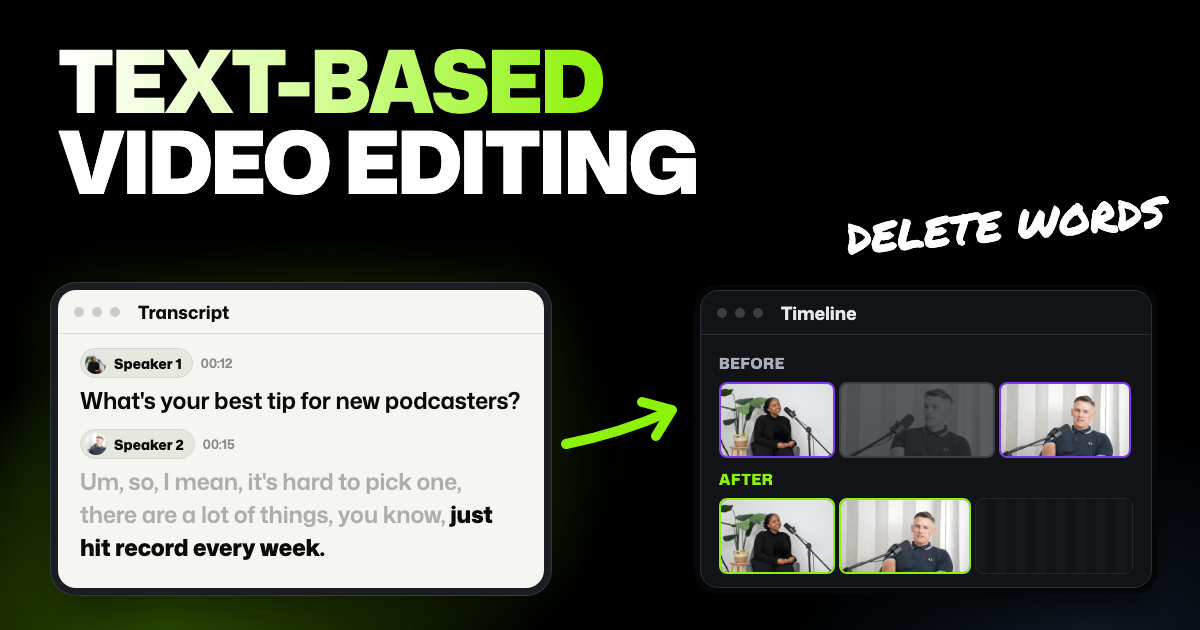
TLDR: Text-based video editing means cutting a video by editing its transcript: delete a sentence, and that part of the video is cut. It works best on talk-heavy video like interviews, podcasts, tutorials and vlogs. Descript, Riverside, Premiere Pro and Selects all offer it.
You recorded a 40-minute interview and need a 10-minute video. Dragging back and forth through the video to find each good answer takes hours. With text-based editing, you read the conversation like a document and cut it the same way.
- Every word has a time. The transcript knows when each word starts and ends, so deleting text tells the editor exactly what to cut.
- Cuts can usually come back. Most tools let you restore a cut, and some keep cut words on screen, grayed out or struck through.
- Read first, then watch. The transcript shows what was said, not how it looks. Watch every cut before you export.
- Visuals still need a timeline. Extra footage, music and moments with no talking are easier to edit by hand.
What is text-based video editing?
Text-based video editing is cutting a video by changing its transcript, the written record of everything said in it. You select words and delete them, and the video loses the same moment. You don't have to hunt for each moment on the timeline, the strip at the bottom where your clips sit in order.
You'll also see it called text based editing, transcript based video editing or script-based editing. They all mean the same thing.
Here's a typical case. A guest answers a question, rambles for a minute, then sums it up in one great line. In the transcript, the ramble is one paragraph: select it, delete it, and the video jumps from the question straight to the great line.
How editing a video by its transcript works
Three things happen behind the scenes:
- The tool transcribes your video. Speech becomes text, and every word gets its own start and end time.
- Your text edit becomes a cut. When you delete words, the tool removes the video between those times and closes the gap.
- Your original stays safe. The recording on your drive isn't changed, so a cut can be undone later.
In my experience, letting ChatGPT or Claude drive an editing timeline isn't enough on its own for cuts to land. If the AI doesn't know exactly when each word is said, or who is saying it, it guesses where sentences start and end. Cuts then clip words or keep the wrong speaker.
A transcript without word timings has the same gap. Text-based editing works because each word is pinned to an exact moment in the video.
Where text-based editing works best
Text-based editing shines when the words carry the video:
- Interviews. You pick the best answers by reading them, not by rewatching an hour of footage.
- Podcasts. Cutting tangents, false starts and long pauses is mostly a reading job.
- Tutorials and courses. Retakes and "let me try that again" are easy to spot in text.
- Talking-head vlogs. You can trim a ramble down to the point you meant to make.
Where text-based editing falls short
A transcript only shows words, so anything that isn't speech is hard to see in it:
- Moments with no talking. A product shot, a reaction or a scenic pause shows up as a gap or not at all. You have to watch it to judge it.
- Music. Cutting to the beat is about rhythm, not words. That job belongs on the timeline.
- B-roll timing. B-roll is extra footage that plays over someone talking. It has to start and end at the right moment, and you place it on the timeline.
- Frame-level precision. A cut between two words can still catch a breath or the first sound of the next word. Listen to each cut and nudge it on the timeline if it clips.
- Jump cuts. On one camera, every removed sentence makes the picture jump, which editors call a jump cut. Deleting text can't hide that for you. This guide to video editing terms explains jump cuts and the cuts editors use to smooth them.
So use the transcript to decide what stays, then finish the rest on the timeline.
Text-based video editing tools compared
We make Selects, one of the tools below. Prices and features come from each company's own pages, checked between October 28 and November 5, 2026.
| Tool | What deleting text does | Bringing cuts back | Filler words and pauses | Price to start |
|---|---|---|---|---|
| Descript | Removes the text and its video (help) | Restore removed media, or Ignore words to keep them struck through (help) | Remove filler words, English only, uses AI credits (help) | Free plan with 1 hour of media a month |
| Riverside | Cuts the word or phrase from the recording; removed text stays gray and struck through (help) | Select removed text and click Restore (help) | Removes filler words (help) and pauses (help), one at a time or all at once | Free plan with 720p export and a watermark |
| Premiere Pro | Trims the matching clips on the timeline (help) | Not listed | Finds filler words and pauses, deletes one or all (help) | From $22.99 a month (annual plan, billed monthly) |
| Selects | Cuts the matching video from the draft | Cut words stay grayed out; Uncut restores them | Remove silence; Cut filler words for English footage; ask chat for other languages | Free editor and export with no watermark; the transcript needs analysis, which uses credits (1,800 free trial credits). |
Descript
- Good at: Text editing is the heart of the app. You can delete words or ignore them, which keeps them struck through in the script. It also records remote guests and cleans up voices with Studio Sound.
- Bad at: The Free plan includes 1 hour of media a month, counting everything you upload or record. When it runs out, uploads stop until it resets. Each upload can be up to 1 GB and 4K, and the Free plan exports at 720p with a watermark. Remove filler words detects English only and uses AI credits.
- Price: Free plan at $0. Hobbyist is $24 a month, or $16 a month billed yearly (pricing).
- Best for: Audio-first podcasts and shows with remote guests.
Riverside
- Good at: Recording remote guests. It records each person on their own device, so a shaky connection doesn't ruin the take, and gives you separate tracks. Then you edit the transcript in the same app, and removed text stays visible so you can restore it.
- Bad at: The Free plan exports up to 720p with a Riverside watermark. Files you upload from elsewhere can be up to 4 hours and 25 GB each.
- Price: Free plan at $0. Pro is $29 a month, or $24 a month billed yearly (pricing).
- Best for: Podcasts and interviews where you record remote guests and edit in one place.
Premiere Pro
- Good at: Text-Based Editing comes with a Premiere subscription at no extra cost. It finds filler words and pauses and deletes them one at a time or all at once. Then you finish with Premiere's full effects, color and graphics.
- Bad at: Adobe's help says Text-Based Editing doesn't support the captions workflow, so captions come after the edit. Desktop Premiere needs a paid plan.
- Price: From $22.99 a month on an annual plan, billed monthly (plans).
- Best for: Editors already working in Premiere who need deep finishing.
Selects
- Good at: Analysis gives you the transcript and also works out who is speaking and what's on screen. You can cut by text, on the timeline or by asking chat. Cut words stay grayed out, and analysis takes files up to 10 hours long. An audio file costs a sixth as much to analyze as a video file, so audio-only podcasts use few credits.
- Bad at: There's no transcript without analysis, and analysis uses credits. Its Record app captures your own mic, camera or screen, but not remote guests. The one-click Cut filler words works on English footage only, though you can ask chat to remove filler words in other languages.
- Price: Importing, timeline editing and exporting are free, with no watermark, no file size limit on imports and exports up to 4K. Analysis uses 360 credits per hour of video, and new users get 1,800 free trial credits. Then Starter is $20 a month, or $16 a month billed yearly (Selects plans).
- Best for: YouTube videos, vlogs, tutorials, courses, interviews, video podcasts, short clips and event videos.
If you record shows with remote guests, Riverside and Descript record and edit in one place. If you already pay for Premiere, its text editing costs nothing extra. If you want to cut by text and also hand bigger jobs to an AI video editor, Selects fits.
How to edit a video by editing text in Selects
Selects is an AI video editor that runs in your browser or as a desktop app for Windows 11 and Macs with Apple silicon. Editing by hand and exporting are free.
Step 1. Add your footage
Drag your recording onto the Home screen. Selects creates a project and asks whether to analyze it. Your video file stays on your computer, because Selects never uploads it.
Filmed with more than one camera or a separate mic? Sync the files too, so they line up and the transcript follows the right audio.
Step 2. Let Selects analyze it
Confirm the files you want in the analyze window. Selects transcribes each one, times every word, works out who is speaking and notes what's on screen. Analysis sends only the audio and still frames.
Analysis uses 360 credits per hour of video, counted for every file. An audio file, like a mic recording, uses 60 credits per hour, and the sound inside a video file isn't counted twice. The 1,800 free trial credits cover about 5 hours of video or 30 hours of audio, and after that credits come with a paid plan. Leave the app open until it finishes.
Here's what analyzing an audio-only podcast costs: a 1-hour episode with three people, each recorded on their own mic as a separate audio file.
| File | Length | Credits |
|---|---|---|
| Speaker 1 mic | 60 minutes | 60 |
| Speaker 2 mic | 60 minutes | 60 |
| Speaker 3 mic | 60 minutes | 60 |
| Total | 3 hours of audio | 180 |
Step 3. Open the transcript beside your draft
You edit in a draft, an editable version of your video. If no draft is open yet, click Create new timeline and drag your file onto it, or ask chat for a first cut.
Then open the Transcript tab on the right. Click any word to jump the preview to that moment. A badge beside each section shows who is speaking.
Step 4. Delete words to cut the video
Select a word, a sentence or a whole paragraph, then press Backspace or Delete. You can also right-click and choose Cut. The video is cut from the draft right away, and playback runs straight past it.
Cut words stay in the transcript, grayed out. To bring them back, select the grayed-out text and press Backspace again, or right-click and choose Uncut. If you don't see cut words, open the settings menu and turn on Show cuts (grayed out) under Transcript.
Spot a misheard word? Double-click it and type the fix. That changes the text, not the video, so captions made from the transcript are spelled right.
Step 5. Clear out pauses and filler words
Open the Apps tab, beside Project at the top of the project panel. Remove silence tightens the pauses between sentences across the whole draft. Pick how much gap to leave, and choose Restore later if you want them back.
Cut filler words removes words like "um", "you know" and repeated phrases, for English footage. It hands the job to the assistant in chat, so it uses chat credits unless you've connected a paid ChatGPT or Claude plan. Restore filler words puts them back.
For footage in another language, ask chat directly. For example: "Remove the filler words like 'eh' and 'este' from this Spanish interview." Check the cuts in the transcript afterward.
Step 6. Watch it, then finish on the timeline
Watch the whole draft from start to finish. Listen closely at each cut, and nudge any that clip a word on the timeline. Add B-roll and music there too.
When it looks right, click Export and choose Video, or Audio for an audio-only show. Exporting doesn't use credits.
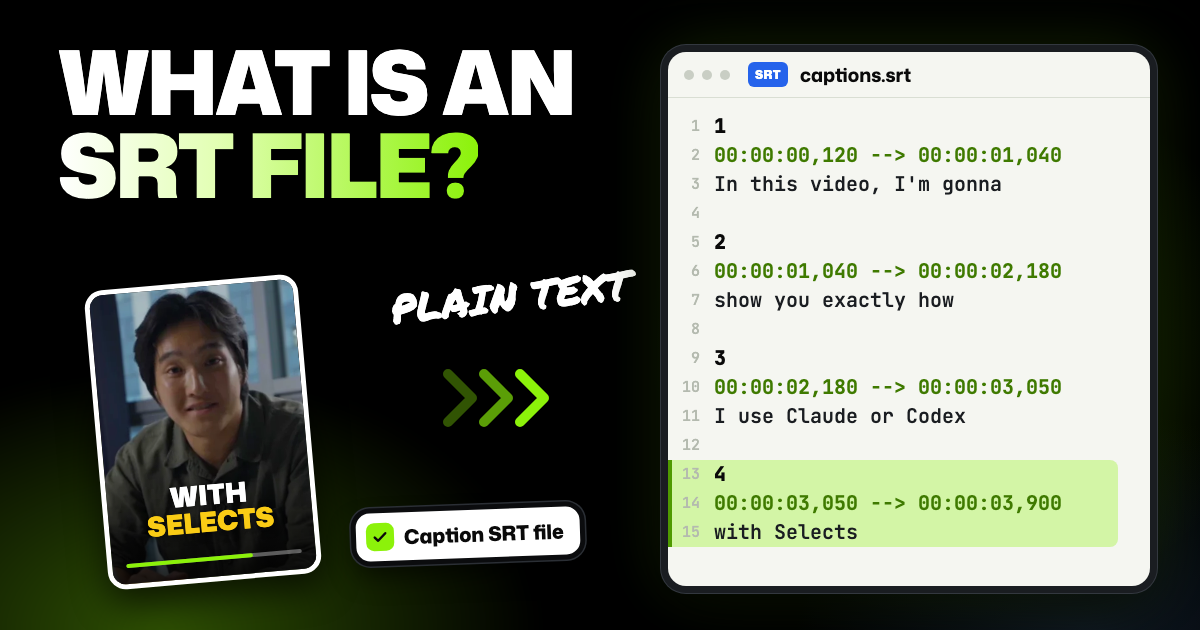
You can also export the transcript as a text file or an SRT file, a caption file most video players and platforms read. Here's what an SRT file is and how to use it.
For every option in the Transcript tab, see Edit your video in the transcript and timeline.
FAQs
Is text-based video editing free?
Premiere Pro includes it with a paid subscription. Descript's Free plan covers 1 hour of media a month, and Riverside's Free plan exports at 720p with a watermark. In Selects, the editor and export are free, with no watermark. The transcript needs analysis, which uses credits, and new users get 1,800 free trial credits.
What's a good Descript alternative for text-based editing?
Premiere Pro is a good fit if you already pay for Adobe and want deep finishing. Riverside suits shows where you record remote guests. Selects suits people who want to cut by text and also hand bigger edits, like a first cut, to an AI video editor.
Can AI do the text editing for me?
Yes, if the AI knows exactly when each word is spoken. In Selects, you can ask chat for cuts like "remove the off-topic part about the weather" once the footage is analyzed.
Chat on Selects' models uses credits, or a paid ChatGPT or Claude plan can run it instead. Check the result in the transcript the same way you'd check your own cuts.