YouTube Watch Hours Are Doubling: Edit for Retention and Keep Your Time for Ideas
YouTube watch hours for monetization double to 8,000 on February 1, 2027. See what changes and how faster editing keeps viewers watching.

TLDR: From February 1, 2027, new channels need 8,000 YouTube watch hours in a year to monetize long videos, double today's 4,000. Shorts channels need 20 million Shorts views in 90 days, everyone needs 1,000 subscribers, and channels already in the program keep their status. Watch hours grow when viewers stay, so spend your time on ideas and hand the repetitive editing to an AI video editor.
You're working toward monetization, and the finish line just moved. Most advice right now is about racing to 4,000 hours before February. This guide is about what keeps paying off after that: videos people watch to the end, made in less editing time.
- Watch hours are views times minutes watched. A viewer who stays 8 minutes instead of 4 counts double.
- The first 30 seconds decide a lot. YouTube Studio shows how many people are still watching at that point.
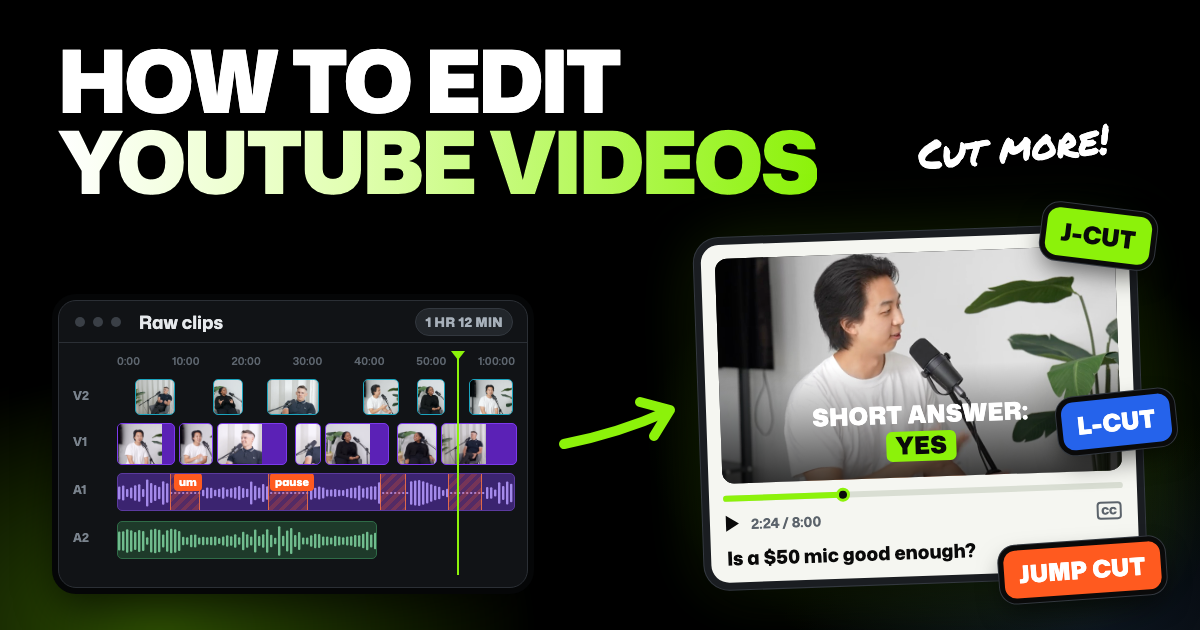
- Clean pacing keeps people around. Cut dead air, filler words and repeated takes, then cover the cuts with B-roll, text and sound.
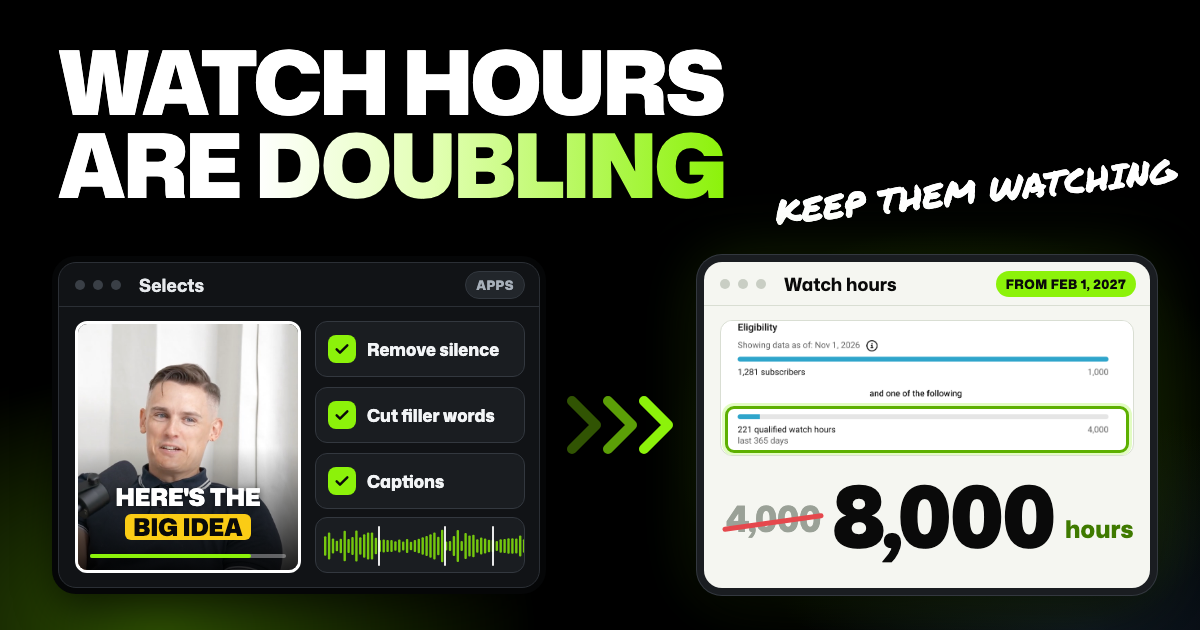
- Selects can take the repetitive jobs. It removes silences, cuts filler words, writes captions and finds music.
What the YouTube watch hours change means
Here are the YouTube Partner Program requirements, today and from February 1, 2027. The program, YPP for short, is what lets you earn a share of ad and YouTube Premium revenue.
| Requirement | Today | From February 1, 2027 |
|---|---|---|
| Subscribers | 1,000 | 1,000 |
| Watch hours on long videos | 4,000 in the last 12 months | 8,000 in the last 365 days |
| Shorts route (instead of watch hours) | 10 million Shorts views in the last 90 days | 20 million Shorts views in the last 90 days |
| Who it applies to | Every channel that applies | Channels that apply from February 1, 2027. Channels already in YPP keep their status |
The new numbers are on YouTube's page about changes to the YouTube Partner Program. YouTube first announced them on its blog on August 10, 2026. Today's YouTube monetization requirements are on its YPP eligibility page.
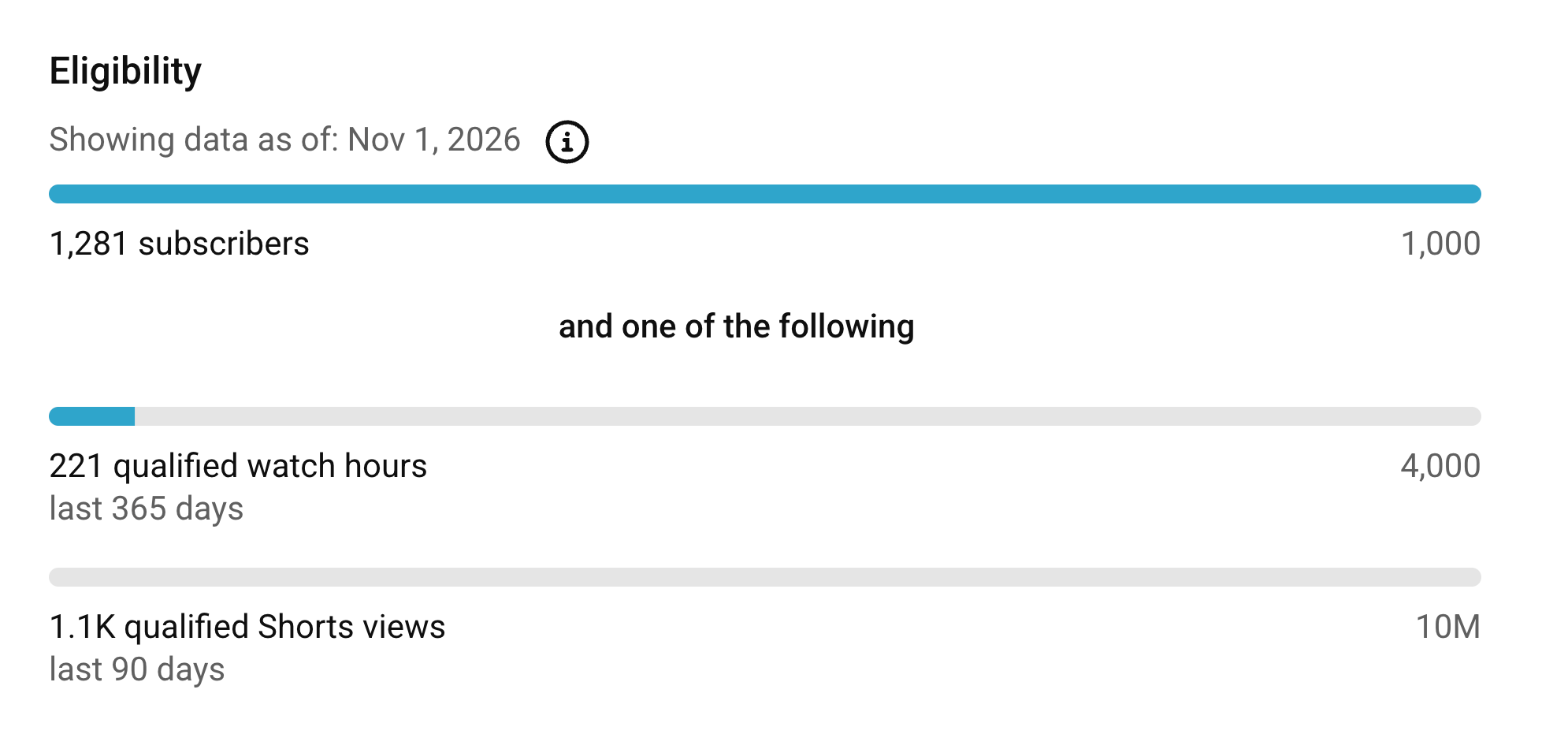 The eligibility card in YouTube Studio on November 1, 2026. This channel has passed 1,000 subscribers but has 221 of the 4,000 watch hours it needs today.
Here's what 8,000 hours looks like: about 22 hours of watching every day for a year. If your average viewer stays 4 minutes, that's about 330 views a day. At 8 minutes, it's about 165.
Watch hours come from retention and good ideas
YouTube audience retention is how much of your video people watch before they leave. YouTube Studio shows it for each video in the audience retention report. It marks the Intro, the share of viewers still watching after 30 seconds, and dips where people skip ahead or leave.
Don't pad videos to make them longer. YouTube uses viewer surveys so its recommendations understand satisfaction, not just watch time. The goal is a video people are glad they stayed for.
Watch hours need views too, and views start with the idea. Casey Neistat, with 12.7 million subscribers, calls the story the most important thing in a video, because it's what drives it.
Editing can't rescue a weak idea, but sloppy editing can sink a good one. Long pauses, ums and the same sentence said twice are where people drift off. That cleanup is repetitive, and it's the part worth handing off.
The editing jobs that keep people watching
Selects is an AI video editor for Windows 11, Apple Silicon Macs and your browser. Here's each job that helps retention, what Selects can take off your plate and what still needs you.
| Editing job | What Selects does | What stays with you | Selects credits |
|---|---|---|---|
| Cut dead air | Remove silence trims the gaps between sentences | Which pauses to keep for timing | Yes, for analysis |
| Cut filler words and retakes | Cut filler words (English) and chat remove ums, restarts and extra takes | Which "you know" are part of your voice | Yes, for analysis and chat |
| Captions | The Captions app writes them from the transcript | The style, and checking names | Yes, for analysis |
| B-roll | Chat places shots from your footage over your voice; stock and AI shots are also there | What to show, and when | Yes for analysis, chat and AI video; stock footage uses none |
| J-cuts and L-cuts | No J-cut or L-cut button. A chat cutaway keeps your voice running over new picture, for an L-cut effect | Where each cut goes | Yes, for chat |
| On-screen text | The Graphics app has titles, lower thirds and pull quotes | The words, and where they go | None, unless chat makes the graphic |
| Music and sound effects | Built-in sound effects and AI music, plus Epidemic Sound and Artlist with your own paid subscription; chat can lower music under speech | The mood, and keeping it subtle | None for built-in sounds; yes for AI music and chat |
The editor and export are free. Most AI steps need Selects to analyze your video first: it watches and listens, so it knows every word, pause and speaker. Analysis doesn't upload your video file: it sends only the audio and still frames.
Analysis and chat on Selects' models use credits. New accounts get 1,800 free trial credits, enough to analyze about 5 hours of video, and then credits come with a paid plan. If you pay for ChatGPT or Claude, you can connect that plan in the desktop app to run the chat instead.
Cut the dead air
Silence is the easiest place to lose someone. To remove silence from video in Selects, open the Remove silence app. It trims the gaps between sentences to a size you choose: No gap, Short, Medium (the default) or Custom.
Remove silence reads pauses from the transcript, so your video needs analysis first. Restore puts every pause back, because nothing is deleted from your files.
Don't cut every pause, though. YouTube consultant Film Booth warns against jamming clips together to remove tiny gaps in his video on editing mistakes. Cuts should feel natural, since editing isn't a race to make the video as fast as possible.
When I edit a talking-head video, I leave 2 to 3 frames of silence after each word and before the next one at every cut. There's no clipped sound, and not enough silence to feel awkward.
Pacing still depends on the video. Informational talking-head videos need a faster pace for today's shorter attention spans. In a vlog, a longer pause can carry emotion, so leave more room there.
The presets work for some videos and not others. Custom sets how much silence stays After word ends and Before next word, in seconds. The transcript shows each pause in frames, so for an exact gap, ask chat: "Remove silences, leaving 3 frames after each word and before the next."
Cut filler words and repeated takes
Ums and restarts make you sound unsure, and viewers feel it. The quickest way to remove filler words is the Cut filler words app. It handles three kinds: hesitations like "um", hedging like "you know", and repeated words.
Cut every one, or pick Minimum jump cuts to cut fewer and leave fewer jumps. The app hands the job to Selects' chat, so it uses chat credits on top of analysis. It works on English footage only, so for other languages, ask chat directly.
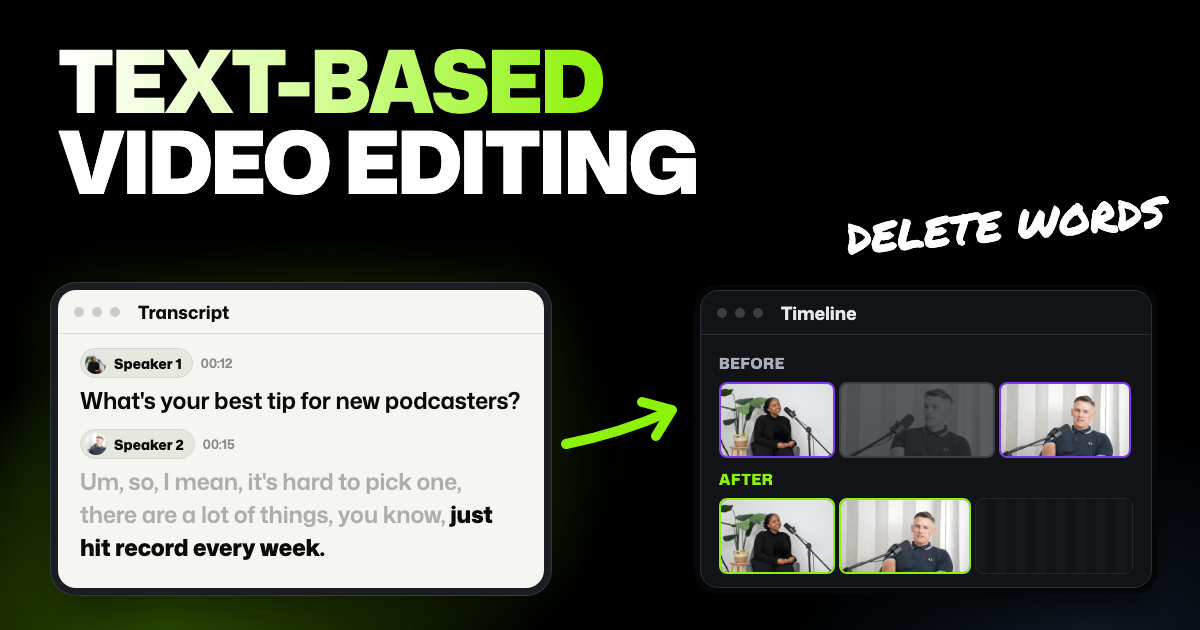
Retakes are the bigger time sink. If you said a line three times until it came out right, analysis groups those takes together. Then ask chat: "Cut false starts and repeated lines, and keep the last complete attempt each time."
A professional editor on our team gave several tools a script and a 7-minute 13-second talking-head take full of retakes. A human editor's cut ran 1:58. Selects came in at 2:00 and left no retakes in.
We make Selects, one of the tools tested. It was one run per tool, and the full test is on our comparison page.
Add captions
Captions help people follow along with the sound off, or in a language that isn't their first. The Captions app writes them from the transcript, so it needs analysis. If you already have a subtitle file (an SRT file), you can import it instead.
Pick a look like Keyword yellow or White pill, then change the font, color and animation. Hide words drops ums and repeated words from the captions only. The video itself doesn't change.
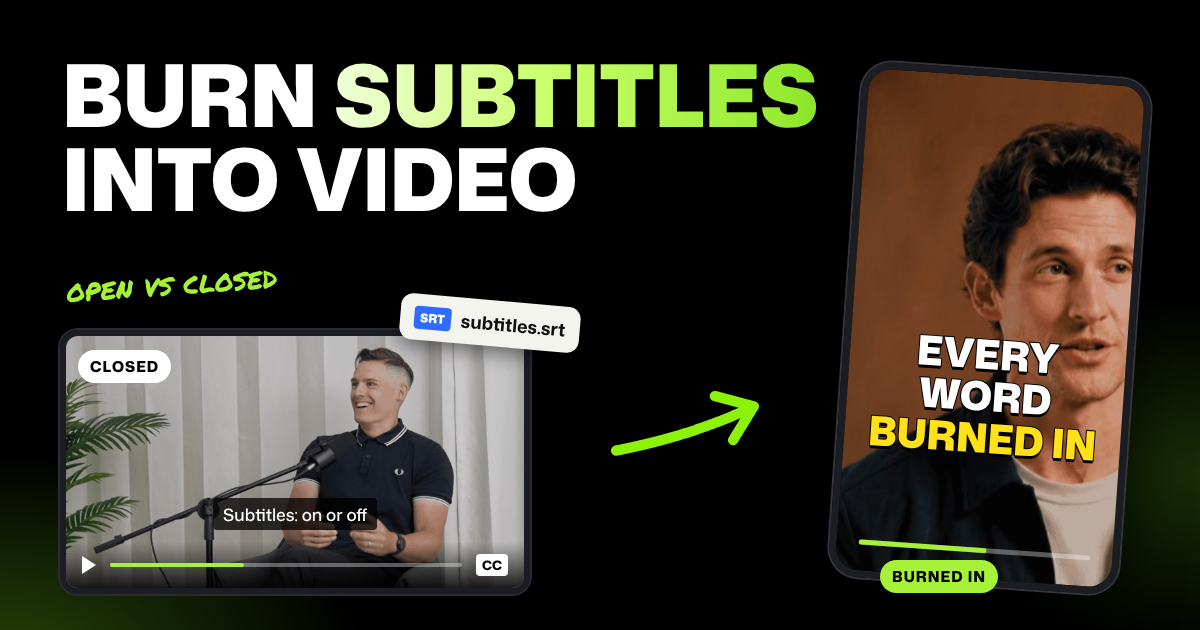
There are two ways to get captions onto YouTube. Burn them in, so they're part of the picture when you export. Or export an SRT file and upload it to YouTube, so viewers can turn captions on and off.
For every setting, see how to add captions in Selects.
Cover cuts with B-roll
Every cut in a talking-head video makes your face jump a little, which is called a jump cut. B-roll, extra footage that plays over you talking, hides the jump and shows what you're describing.
There's no B-roll button in Selects. Once your footage is analyzed, ask chat instead. For example: "When I talk about the new camera, cut away to the shots of it on my desk. Keep my audio running."
Chat finds the shots by what's in them and puts them on a lane above, picture only.
Short on your own footage? Three apps can fill the gap:
- The Stock media app searches free videos and photos from Pexels and Pixabay.
- The Artlist app adds stock footage if you have an Artlist subscription. Install it from Explore in the desktop app first.
- The AI video app generates shots you didn't film, and uses credits.
This is where your creative time should go. Let AI handle the routine cuts, and spend the saved hours on what only you can make, like a montage or a running joke.
Smooth the cuts with J-cuts and L-cuts
A J-cut starts the next shot's sound before its picture. An L-cut keeps the sound going after the picture changes. Both make a cut feel like one continuous thought instead of a hard switch.
In my experience, J-cuts and L-cuts work well for talking heads and vlogs, and jump cuts work for long action sequences.
Film Booth explains why J-cuts help talking videos in the same editing mistakes video: with a plain cut, every new clip stops the story for a moment. StudioBinder shows jump cuts shrinking time in a montage, and Fandor shows J-cuts and L-cuts giving a conversation a natural flow.
Selects has no J-cut or L-cut button. For an L-cut effect, use the chat cutaway from the B-roll section. New picture goes on top while your voice keeps going, so the picture changes without a break in the sound.
Add on-screen text
Text on screen repeats the key point for people half watching, and marks where a new section starts. The Graphics app has titles, lower thirds (the name bar at the bottom of the frame) and pull quotes, plus caption looks and stickers.
Drag one onto the timeline, the strip at the bottom where your clips sit in order. Then double-click it in the preview and type your words.
Built-in graphics use no credits. Asking chat to make a custom graphic uses credits, unless you've connected your own ChatGPT or Claude plan.
Keep text to a few words, and only where it adds something. A title on every sentence wears people out.
Add music and subtle sound effects
Music sets the mood, and a soft whoosh on a cut gives the eye a reason to follow. Keep both low. If people have to strain to hear you, they leave.
| Source in Selects | What you get | What you need | Selects credits |
|---|---|---|---|
| Effects app, Sounds tab | A built-in sound effects library | An internet connection | None |
| Epidemic Sound app | Music, sound effects and voiceovers | Your own paid Epidemic Sound subscription. The app connects your account | None. Voiceovers use your Epidemic Sound credits |
| Artlist app | Music, sound effects and stock footage | Your own paid Artlist subscription and the desktop app. Install the app from Explore, under Custom apps, and it connects your account | None |
| AI audio app | Music made from a description of the mood | Selects credits | Yes |
| Your own files | Any music you have the rights to | Nothing extra | None |
Selects doesn't sell Epidemic Sound or Artlist tracks. Both apps connect the paid account you already have. Epidemic Sound is already in the Apps list, and you connect it with a key from your Epidemic Sound account. Artlist appears once you install it, and you sign in with your Artlist account.
Ask chat to lower the music while you speak: "Duck the music under my voice." There's no one-click auto-duck button. You can also set the volume at points along a clip by hand.
For a tour of every app, see how to find and use apps in Selects.
Publish straight to YouTube
When the video is done, Export, then YouTube, renders it and posts it to your channel with its title, tags and thumbnail. Posting to YouTube works in the desktop app. Custom thumbnails need a verified channel.
Selects doesn't add YouTube chapters. Ask chat to list timestamps for the topics it found during analysis, then paste them into your description. Here's how to publish to YouTube from Selects.
Spend the time you saved on the next idea
None of this makes a video worth watching on its own. It stops a good video from leaking viewers. Put the hours you get back into the parts only you can do:
- The promise. The title and thumbnail say what the video answers, and the first 30 seconds start delivering it.
- The dips. Open the retention report on your last video, find where people left, and avoid that pattern in the next one.
- The best moment, earlier. YouTube's own retention guide suggests moving strong moments earlier, since audiences shrink as a video goes on.
FAQs
Do channels already in the YouTube Partner Program need 8,000 watch hours?
No, YouTube's page on the changes says creators already in YPP keep their status. You still need to accept the updated terms in YouTube Studio by January 31, 2027. If you don't, the features those terms cover stop paying on February 1, but you stay in the program.
From February 1, 2027, channels in the program also need to stay active. That means 1,000 watch hours in the past 365 days, 1 million Shorts views in the last 90 days, or 2 long videos or 5 Shorts uploaded every 90 days. A channel that drops below gets 90 days to get back to 1,000 watch hours or 1 million Shorts views. Earning from Shorts each month also needs 10 million Shorts views in the last 90 days. Below that, you stay in the program and keep earning from long videos.
Do Shorts count toward YouTube watch hours?
No. Watch hours from Shorts in the Shorts feed don't count toward the watch hours threshold, per YouTube's eligibility page. Shorts have their own route instead: 10 million views in 90 days today, and 20 million from February 1, 2027.
What if I reach 4,000 hours before February 1, 2027?
Apply as soon as you qualify. YouTube says the new thresholds apply to new creators from February 1, 2027, and that channels already in YPP keep their status. Its pages don't say how applications still under review that day are handled.
Does removing silence hurt retention?
Cutting dead air usually helps, but cutting every pause can hurt. With no room to breathe, jokes fall flat and important lines rush past. Trim the long gaps and leave a beat where a line needs to land.
Do private or unlisted videos count toward watch hours?
No, YouTube doesn't count watch hours from private, unlisted or deleted videos, or from ad campaigns. Livestreams count only if they're public and saved as a regular video, per YouTube's eligibility page.